Import
Import CAD model
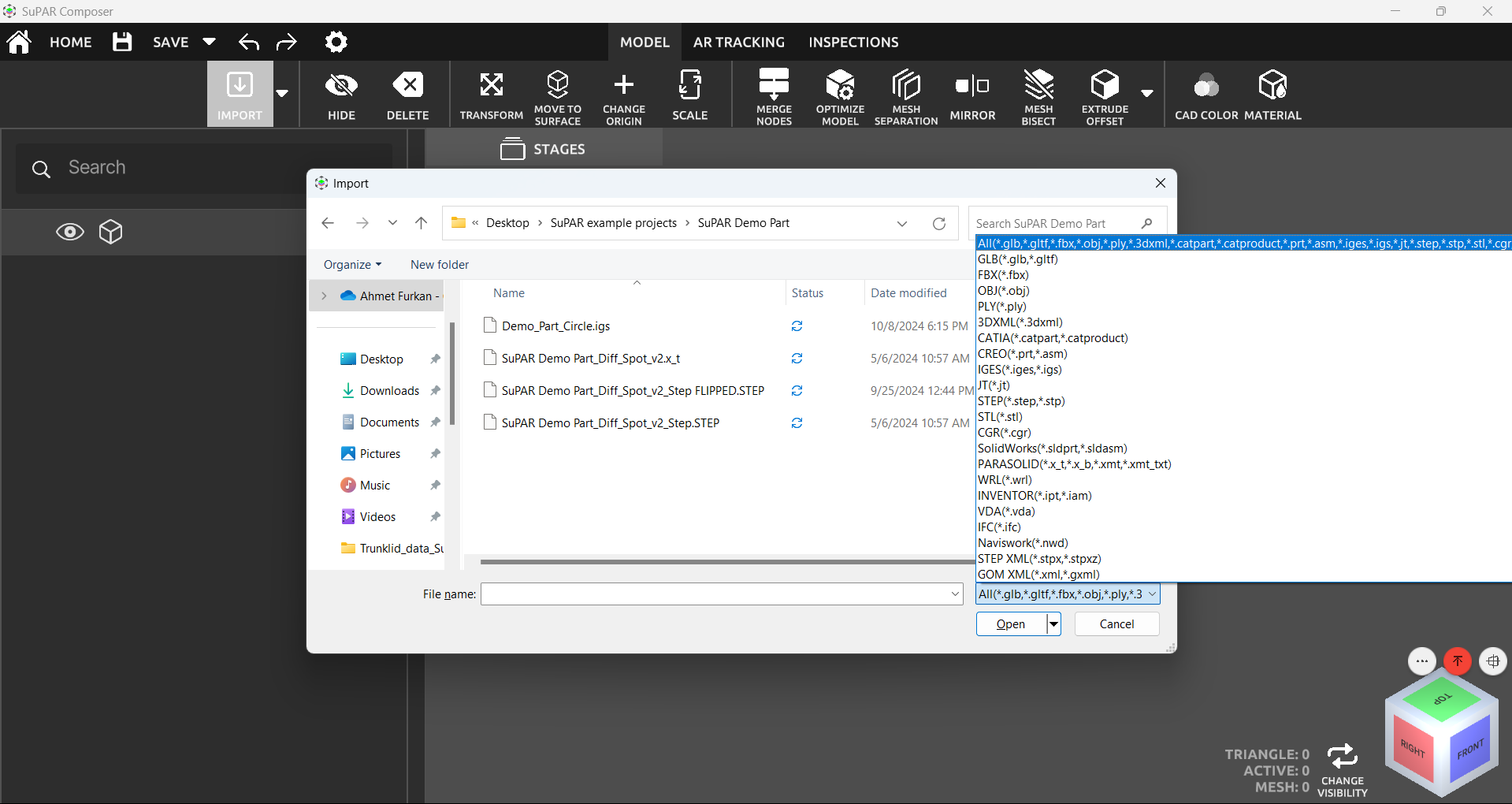
Click Import and select the file from your computer. See the list of supported file formats.
Import options
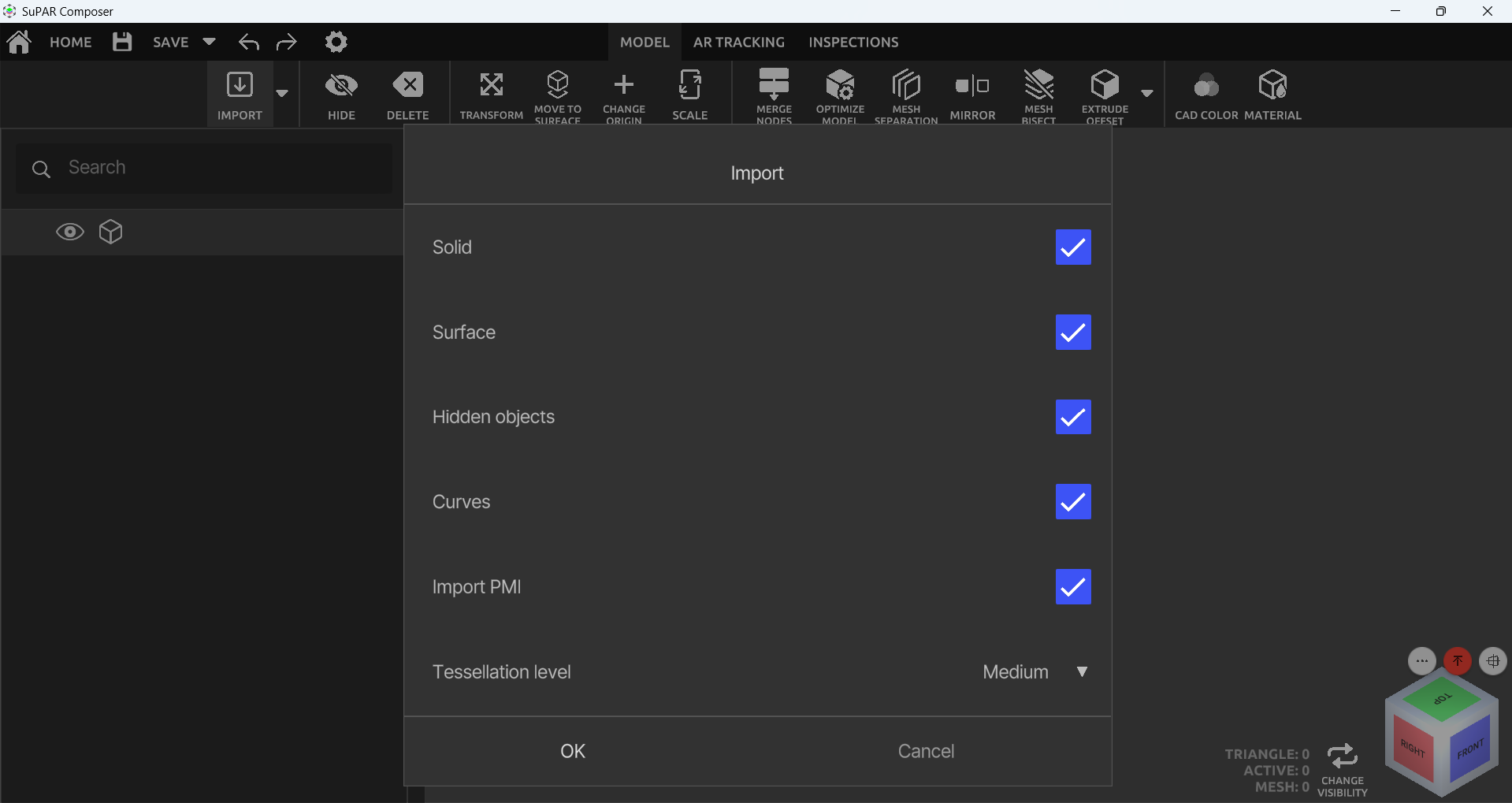
- Solid: Import solids.
- Surface: Import surfaces.
- Hidden Objects: Import hidden objects.
- Curves: Import curves (2D drawings).
- Import PMI: Import Product Manufacturing Information.
- Tessellation Level: Adjust the triangle (polygon) count. The default is High; change it to Low if you get a High Polygon Count warning. It does not affect tracking. Recommended: Medium.
Import measurement (color map)
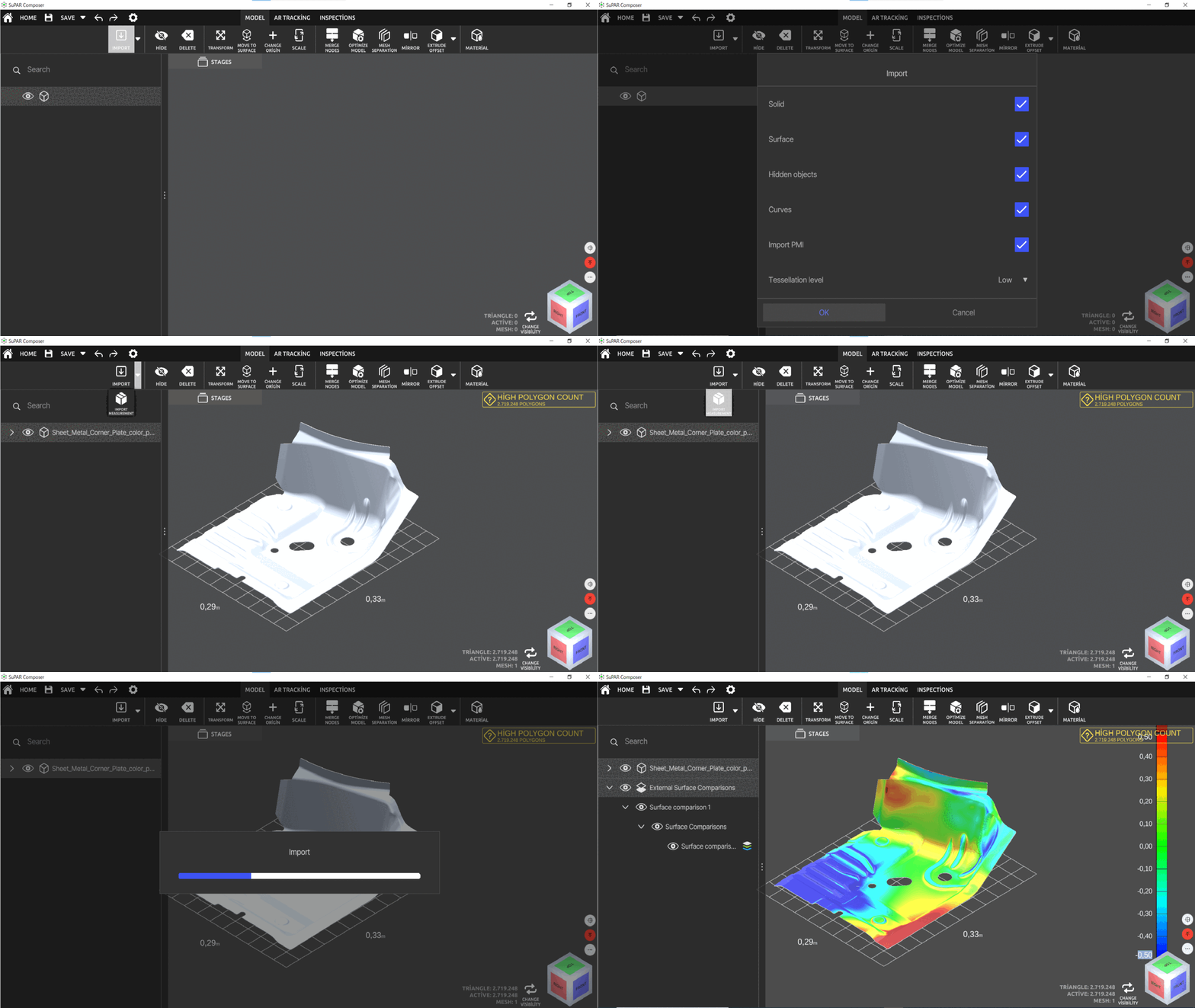
External measurement data from GOM and Creaform (.xml, .gxml) can be imported and displayed as a color map on the CAD model:
- Import the CAD model first.
- Click Import Measurement.
- Select the
.xml/.gxmlfile and click Import. - In the product tree, find External Surface Comparison and expand it.
- Tick the checkbox to make it visible.
- The color scale can be customised.
Import measurement (gap & flush)
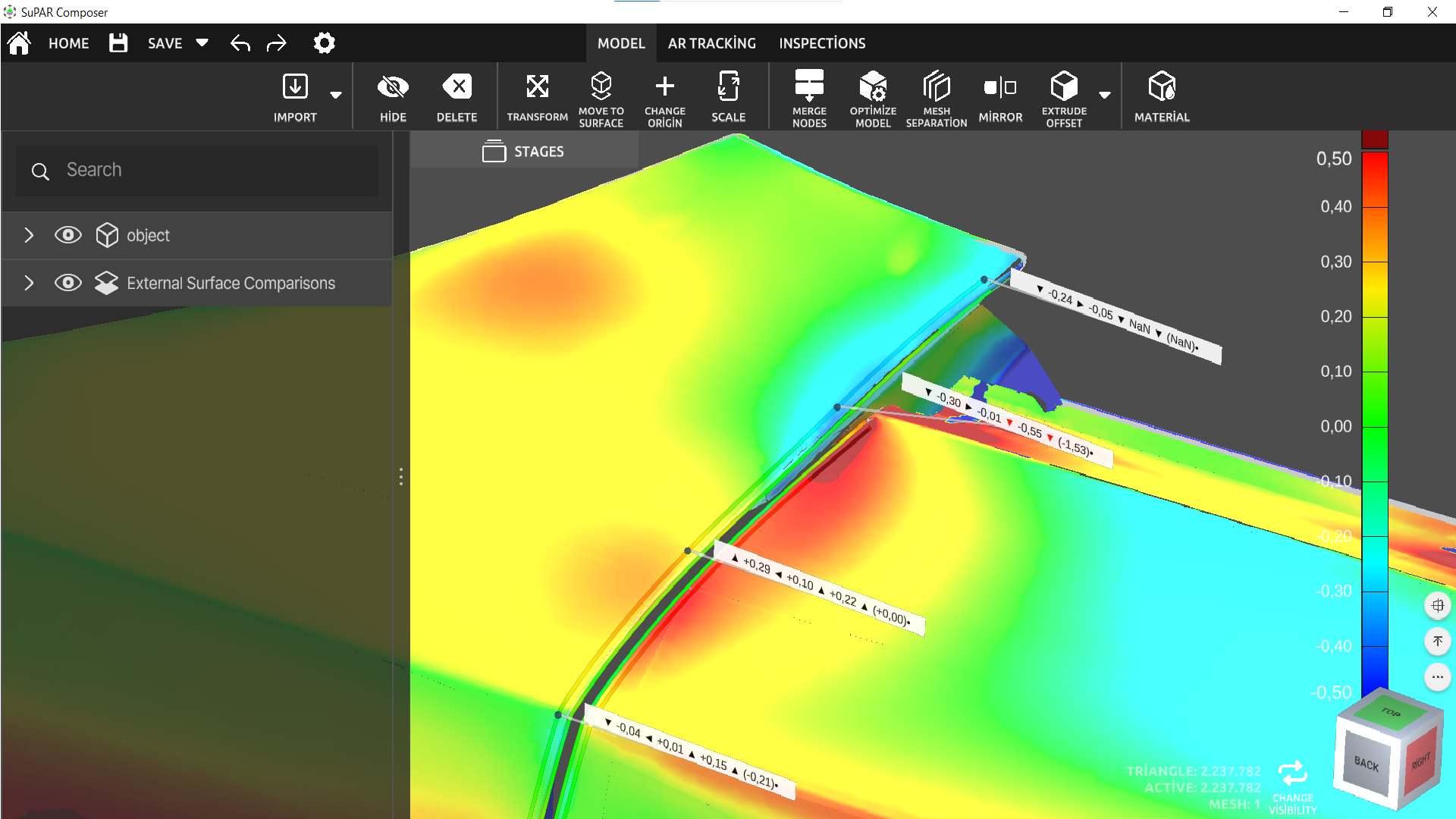
Zeiss GOM gap & flush results can also be visualised in SuPAR:
- Import the CAD data.
- Import the measurement (
.xmlor.gxml). - Enable External Surface Comparisons in the product tree.
- The gap & flush values are shown with labels.
In the SuPAR App the same data is projected in AR — see Color Map / Gap & Flush.