Product Tree
The product tree lists all nodes and parts of the project. Right-click a node to open its context menu.
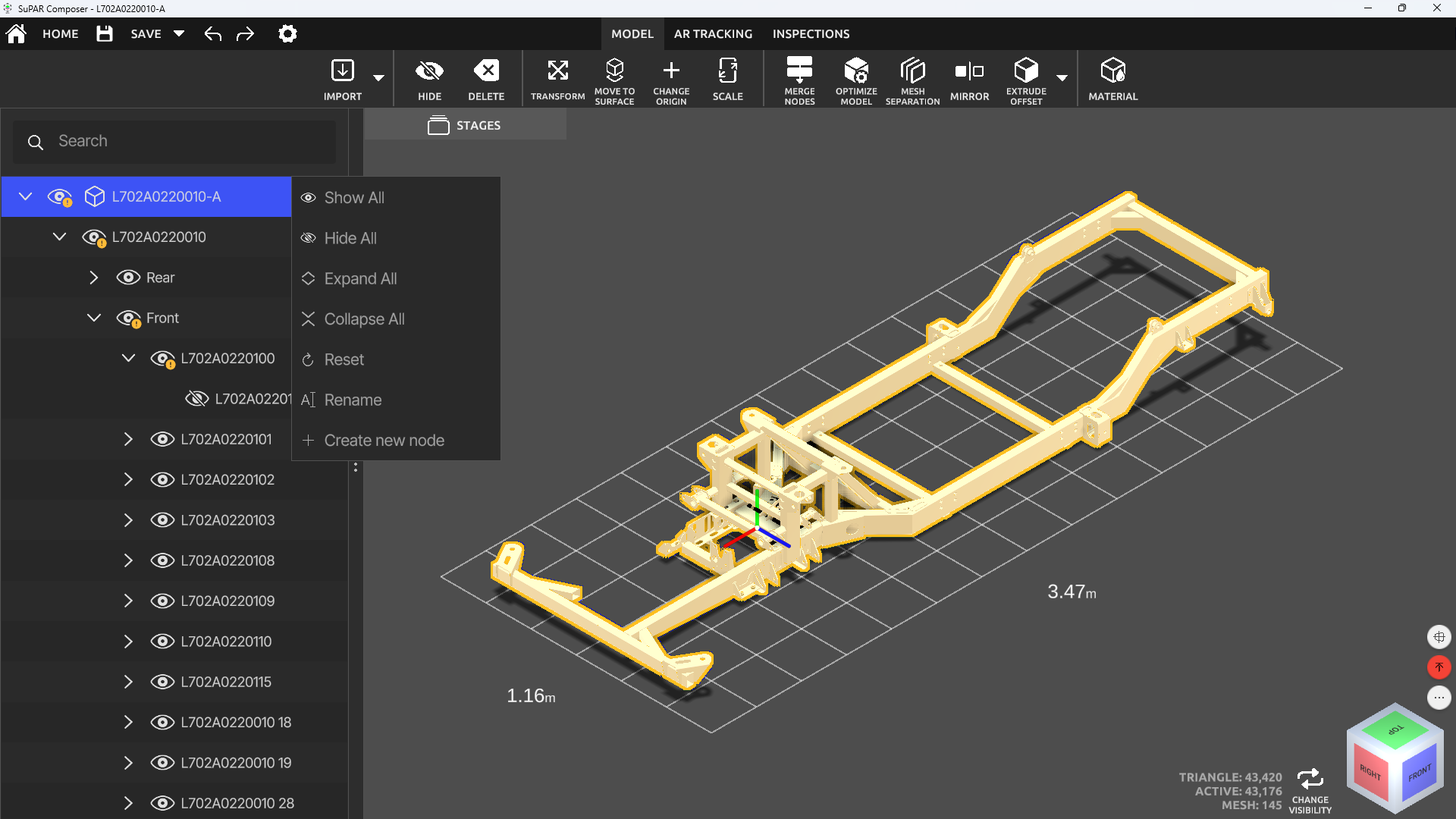
Node actions
- Show All: Make all parts under the selected node visible.
- Hide All: Make all parts under the selected node invisible.
- Expand All: Expand all nodes under the selected node.
- Collapse All: Collapse all nodes under the selected node.
- Reset: Reset the product tree to the saved state.
- Rename: Change the name of the selected node.
- Create New Node: Create a new node.
- Warning icon: Indicates that there are hidden parts in the child nodes.
Selection, copy, cut and paste
- Multiple Selection: Hold Ctrl while clicking.
- Range Selection: Hold Shift while clicking.
- Copy: Copy the selected parts.
- Cut: Cut the selected parts.
- Paste: Paste the cut or copied parts into the selected node.
Keyboard control
Keyboard control was added to the product tree in SuPAR 2025.1:
| Key | Action |
|---|---|
Page Up | Move up |
Page Down | Move down |
→ (Right Arrow) | Expand sub-parts |
← (Left Arrow) | Collapse sub-parts |
0:00 / 0:00
POI re-order
Points of Interest (POIs / checkpoints) can be rearranged within the product tree, either by drag and drop or with the Reorder panel:
- Right-click Checkpoints in the product tree.
- Click Reorder.
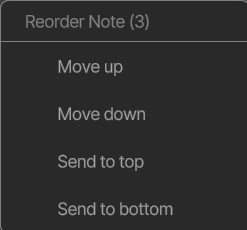
- In the Reorder panel, change the POI order with the buttons (Move up, Move down, Send to top, Send to bottom) or by drag and drop.
0:00 / 0:00