Main Screen
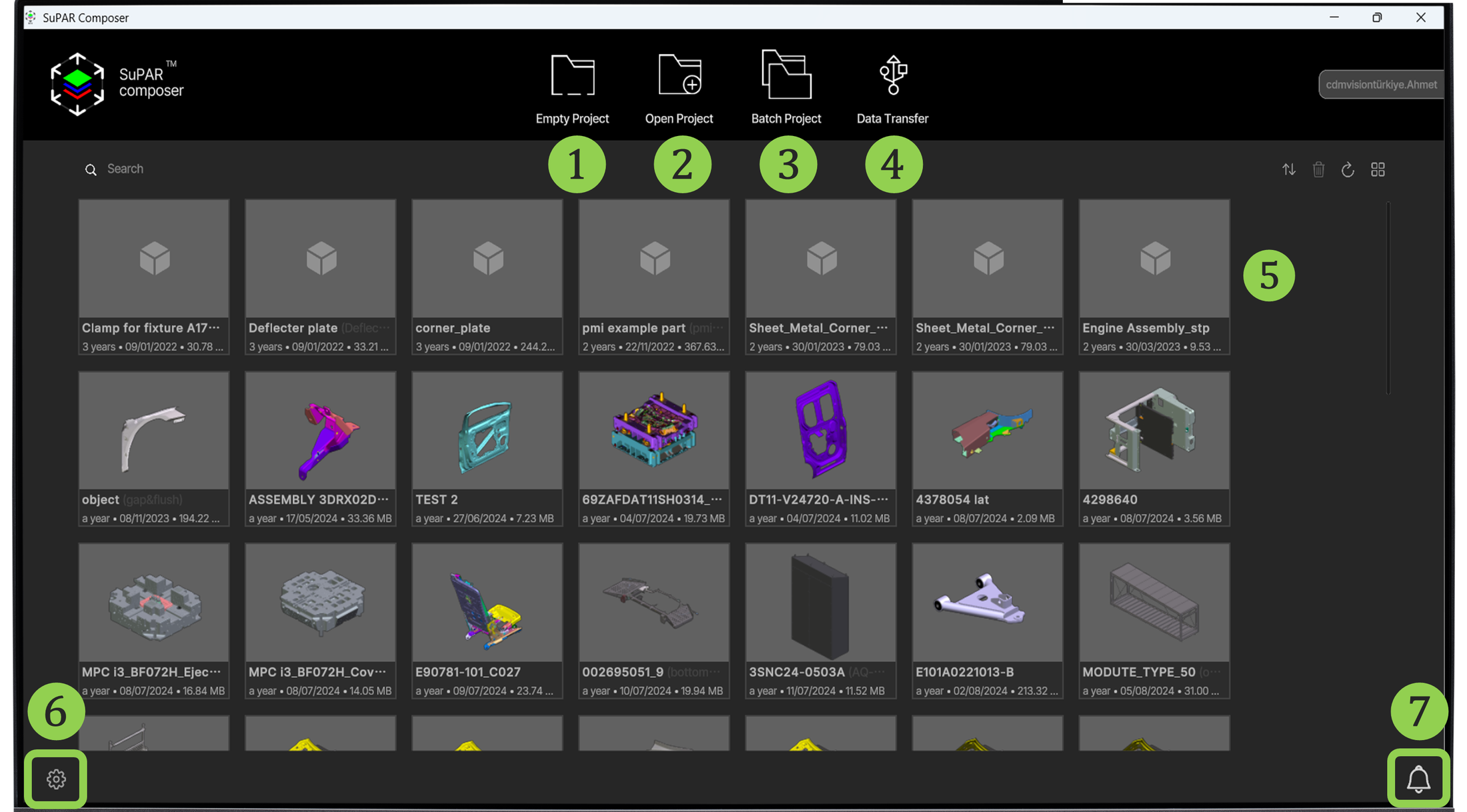
- Empty Project: Create a single project involving one or multiple CAD files. See Empty Project.
- Open Project: Open existing
.spprojectfiles (3D inspection viewer). - Batch Project: Create multiple projects at once. See Batch Project.
- Data Transfer: Transfer project files to the iPad via cable. The SuPAR App must be open on the iPad. See Data Transfer.
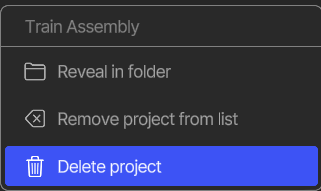
- Projects List: Access and continue your projects. Right-clicking a project opens a context menu with Reveal project in folder, Remove project from list and Delete project.
- Settings (gear icon): Change settings and activate the license. See Settings & License Activation.
- Notifications (bell icon): View alerts and system messages.