Stages
Stages are pre-prepared sets of visible parts. When a stage is active, only the objects in that stage are visualised. Stages can be used for assembly sequences or for inspections that focus on specific parts in the SuPAR App (see Stages in the App).
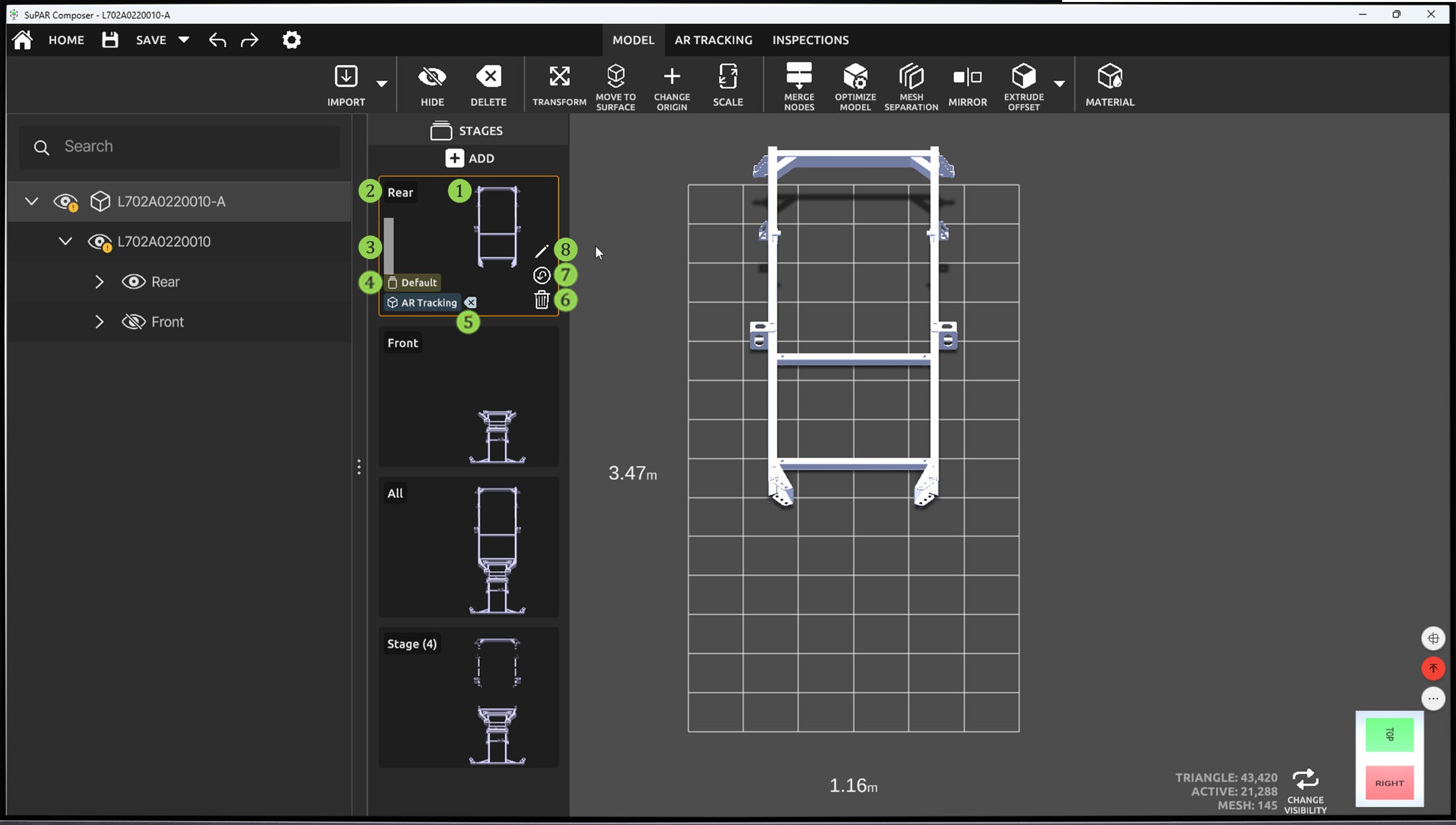
- Thumbnail: Shows a preview of the parts contained in the stage.
- Name: Displays the name of the stage. New stages are automatically labeled Stage (1), Stage (2), and so on.
- Change Order: Drag and drop a stage to change its order.
- Default: The stage in the first position is always the default stage.
- AR Tracking: Indicates that the edges of the parts in the stage have been extracted and will be tracked in the SuPAR App.
- Delete: Delete the stage.
- Replace: Copy the selected stage to another stage and update the target stage with the currently hidden/shown parts.
- Rename: Change the name of the stage.
Default stage and edge extraction
- The edges of the default stage must always be extracted. If they have not been extracted, Composer extracts them when the project is saved.
- Composer automatically extracts the edges of only the default stage. The edge extraction process must be run manually for the other stages (see AR Tracking).
- The extracted edges can be deleted by clicking the X button without deleting the stage.
⚠️
If a part is added to or removed from a stage, its edges are not updated automatically. Run the edge extraction again for that stage.
0:00 / 0:00
Replace and rename
- When a stage is copied with Replace, its extracted edges are not copied.
- If a stage is updated with a part hidden or shown, the extracted edges are not updated. Run the edge extraction again for that stage.
0:00 / 0:00