Cross Section, Magnifier & Layers
Cross section
Cross section is a tool for visualising specific areas during the inspection. A more detailed inspection can be made by taking a section through the object.
0:00 / 0:00
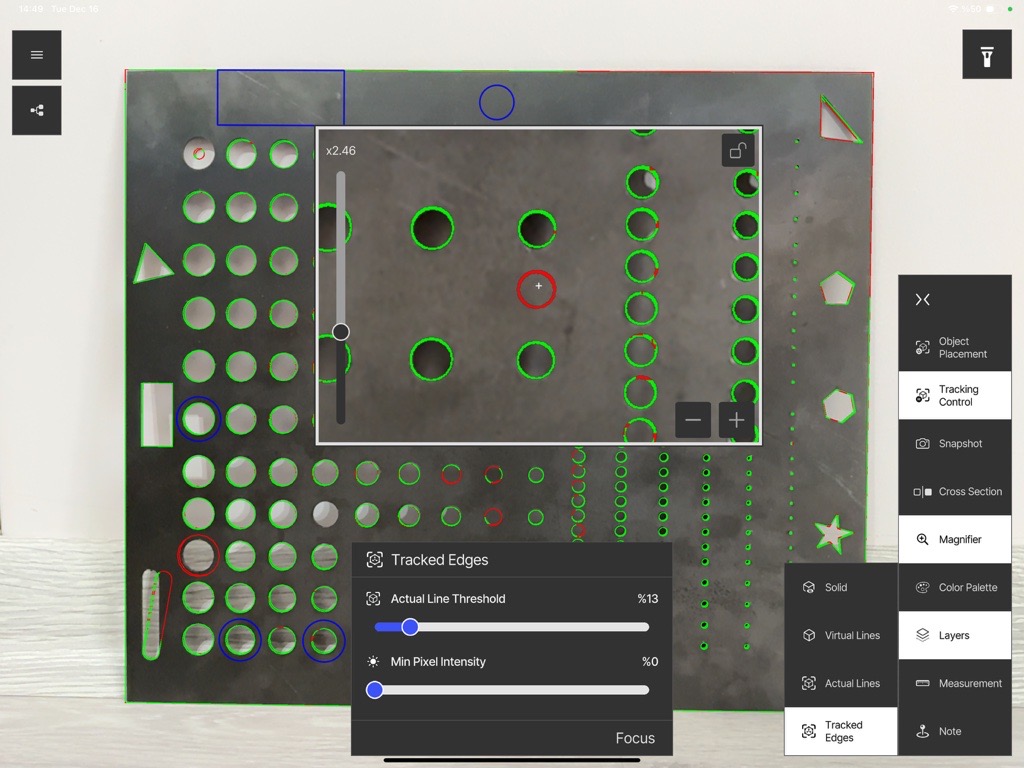
Magnifier
- Zoom factor slider: zoom in and out.
- Zoom lock: lock the zoom window’s target point, marked with the reticle icon.
- Zoom window resize: the plus and minus signs at the bottom right resize the zoom panel.
0:00 / 0:00
Color palette
Adjust the color and opacity of the solid model. By changing the opacity, presence/absence analysis can be performed easily.
0:00 / 0:00
Layers
- Solid: Visualises the solid model on the part.
- Virtual Lines: Visualises the outer edges (CAD edges / CAD wireframe) on the part.
- Actual Lines: Visualises the actual edges of the part detected by the camera.
- Tracked Edges: Visualises the matching edges of the CAD model and the part in green and the unmatched edges in red.
Change the Threshold and Min Pixel Intensity values depending on the part and the conditions.
0:00 / 0:00
Recommended values
- Actual Line Threshold: 5 % – 30 %
- Min Pixel Intensity: 0 % – 20 % (if the object is black, set 0 %)
💡
It is not recommended to enable more than one visualisation method at the same time (for example Solid Model and Virtual Lines) — this may create confusion. Activate either Solid Model or Virtual Edges.
POI anchor clipping
Adjust the visibility of the control points (POI anchors) based on their distance. The setting is also available in Graphic Settings.
0:00 / 0:00