Data Transfer
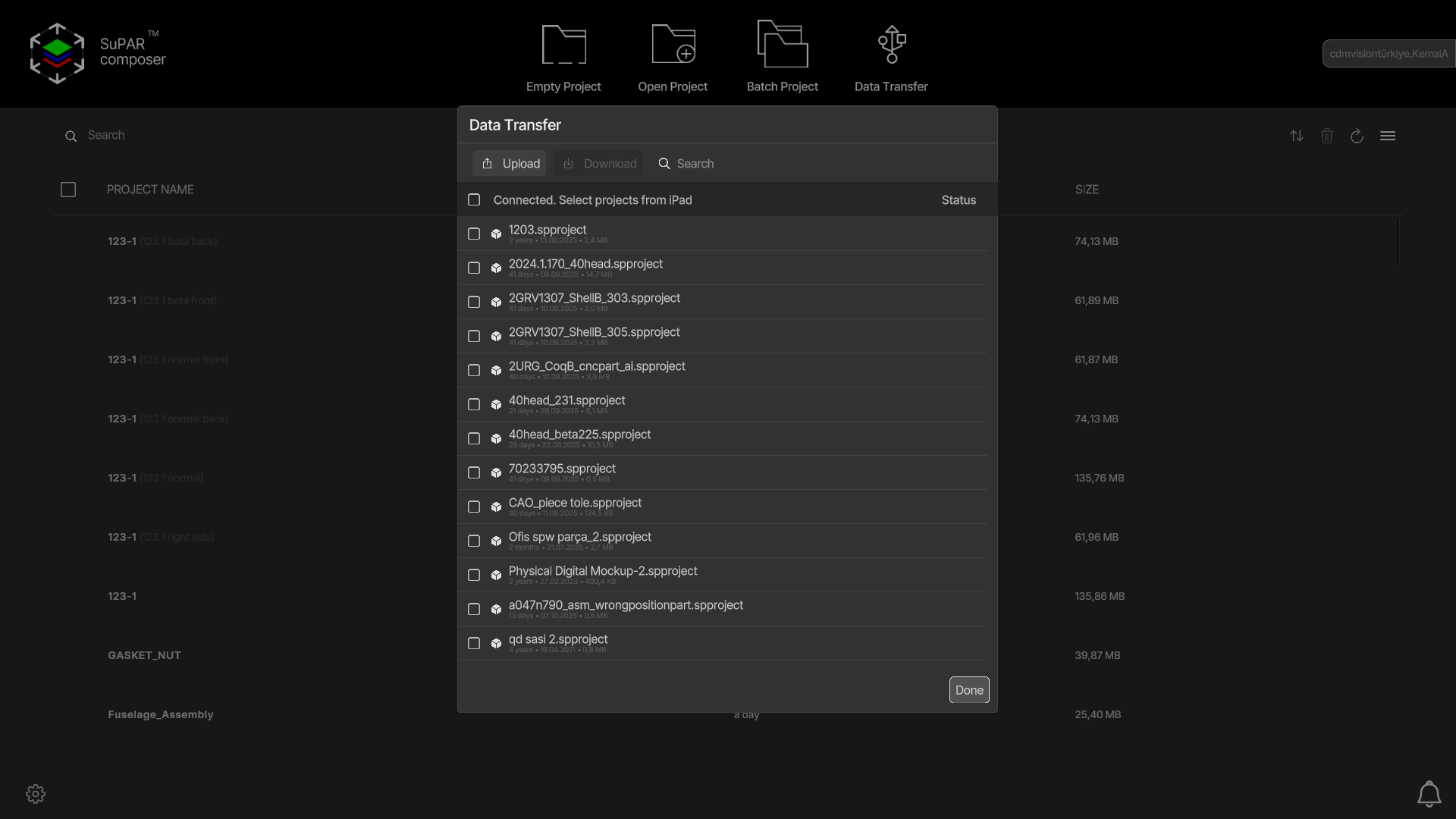
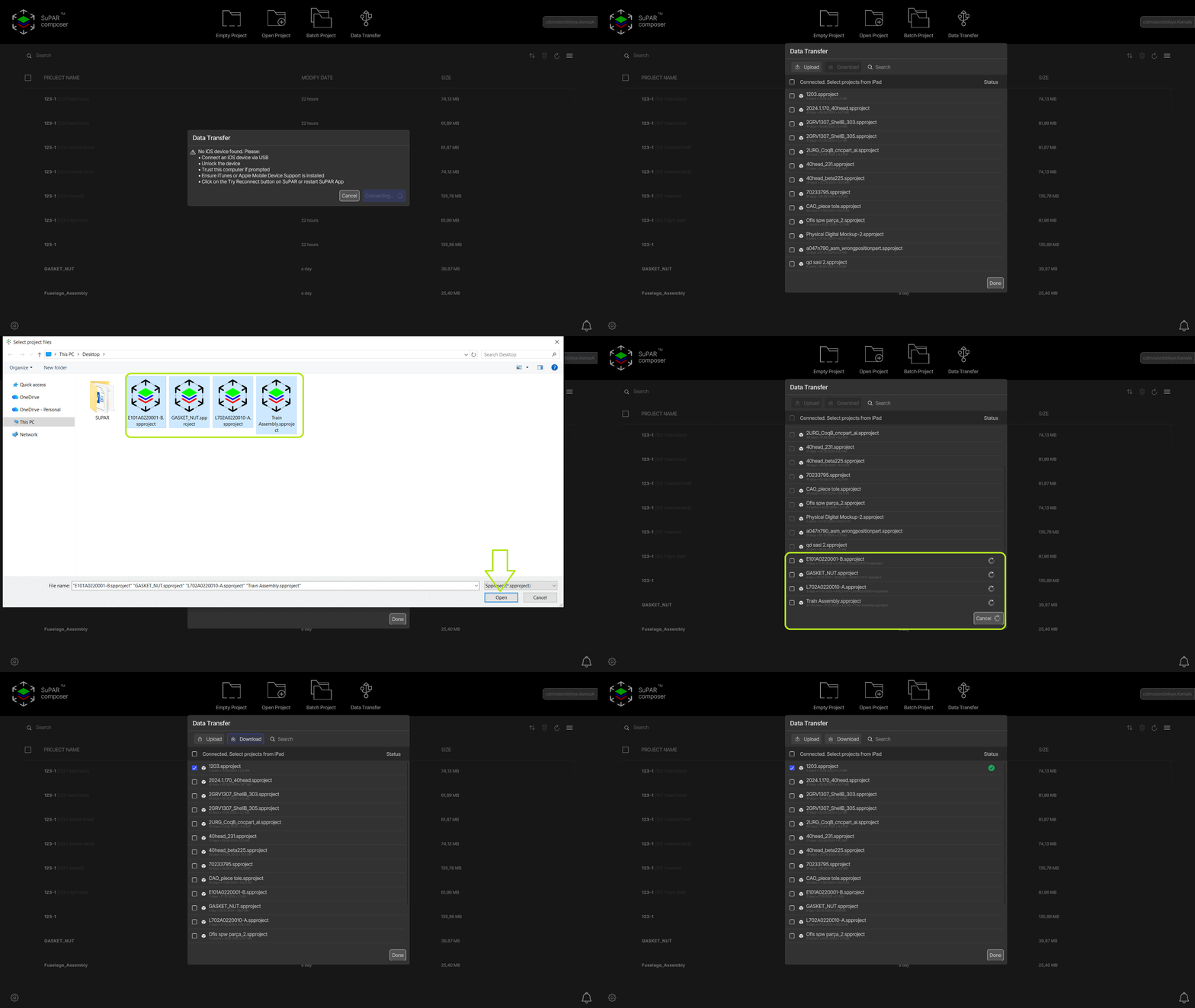
Data Transfer sends .spproject files to the iPad (or receives them back) over a USB cable.
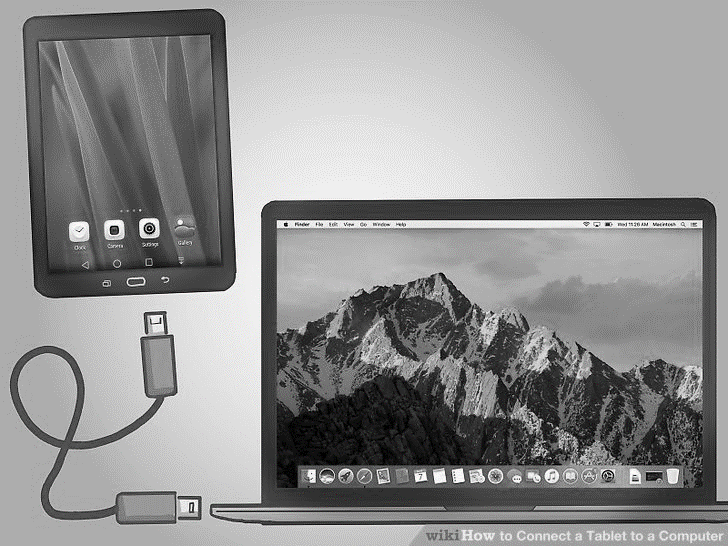
- Connect the iPad to the PC with a USB cable.
- Open the SuPAR App on the iPad and keep it open on the Data Transfer screen.
- Click Data Transfer in Composer and select the transfer mode (Receive or Send).
- Select the files and send or receive them.
Troubleshooting
- Check file name and path limits: the
.spprojectfile name must be at most 127 characters and the file path must not exceed 255 characters. - Unplug the USB cable and reset Location & Privacy:
- Disconnect the USB cable from both the PC and the iPad.
- Close both the SuPAR App and Composer.
- On the iPad, go to Settings → General → Reset or Transfer → Reset → Reset Location and Privacy.
- Start the App and Composer again, then reconnect the USB cable.
- When prompted with Trust this computer?, select Trust.
- Check the USB port: make sure the port works — Windows should recognise the iPad and display its photos.
- Check cables/adapters: verify that the cables, extensions or adapters you use support data transfer.
- Check iOS version compatibility: make sure the SuPAR version is compatible with your iOS version.
- For iOS 16, use SuPAR version 2022.2.
- For iOS 15, you can use up to SuPAR version 2022.1, but not higher.
- Ensure Apple Mobile Device Service is running: confirm that the Apple Mobile Device Service is running. Accessing Task Manager may require admin privileges.
- Driver installation: if the issue persists, try installing the iPad driver from a local file.