Extrude Offset, CAD Color & Material
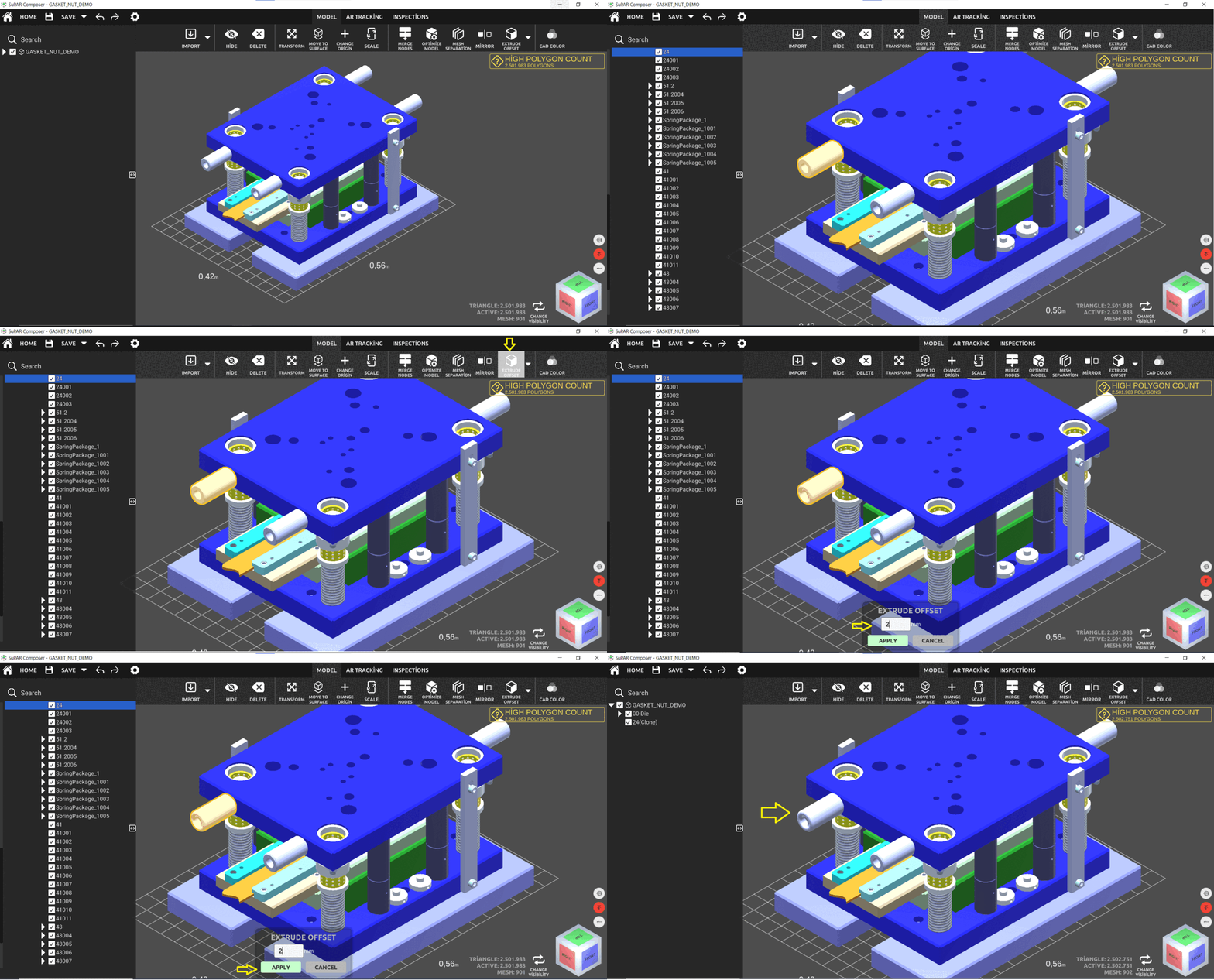
Extrude offset
Extrude the model by entering a value in millimetres — for example, to show the flexible placement of objects such as cables, pipes, sealant and beads.
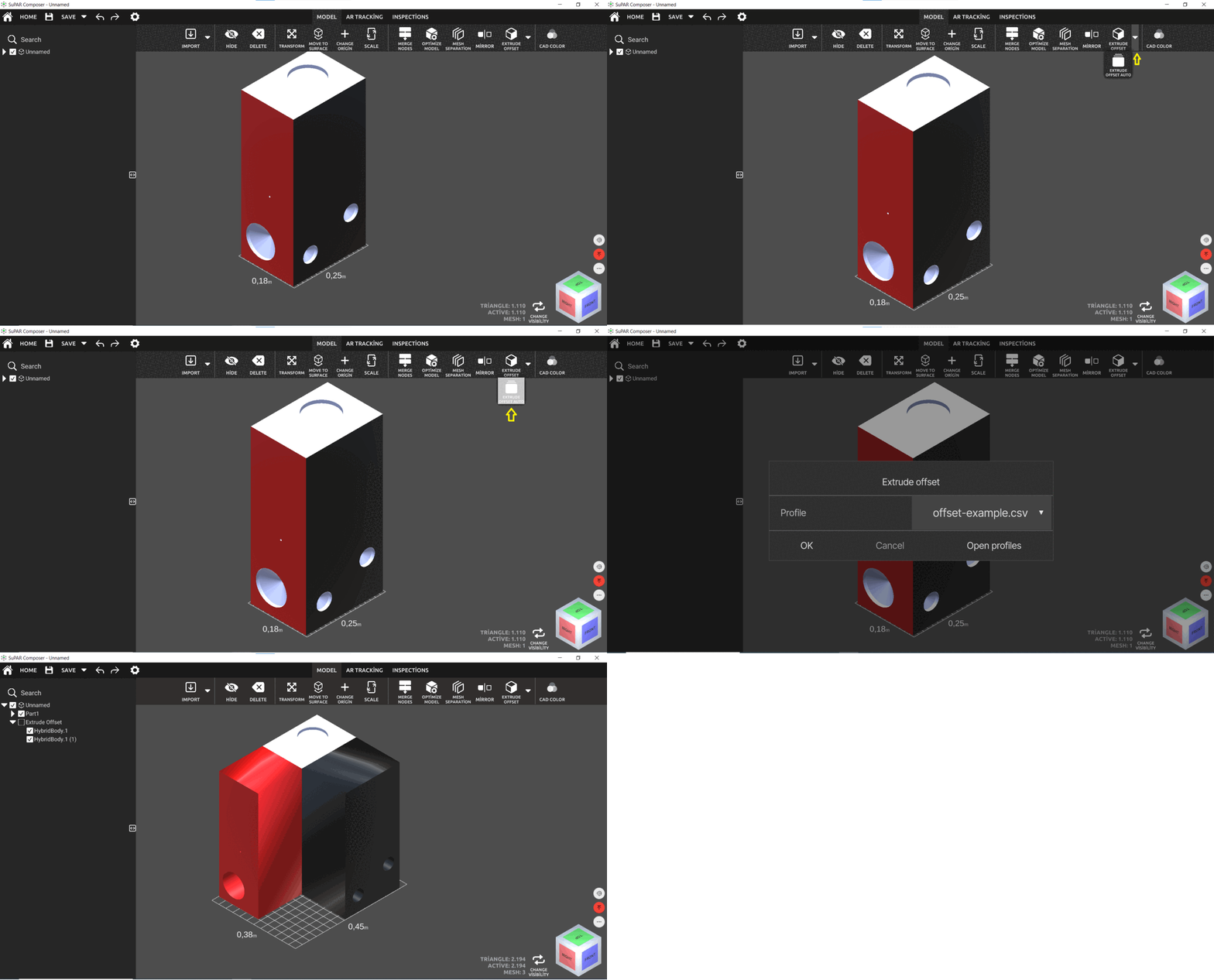
Extrude offset auto
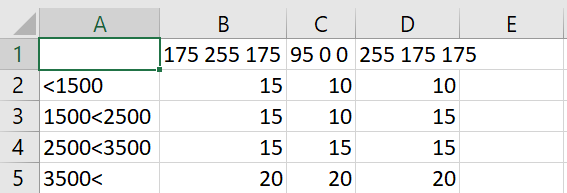
Extrude the model by reading color and dimension values from a CSV file. Using the CAD Color feature, the RGB values of an object can be found or changed. Example use: showing production tolerances on casting parts.
CSV layout:
- Line 1: RGB values of the colors.
- Lines 2, 3, 4… / columns B, C, D…: offset values (mm) per size range and color.
CAD color
Adjust the CAD color of the selected part. The desired color can be picked with the mouse or entered manually as RGB values, then confirmed with OK.
0:00 / 0:00
Material
Assign a material to the selected part:
- Select the desired material and drag it onto the part.
- The smoothness and metallic values of the material can be adjusted.
- Once the material is applied, the change is confirmed automatically.
- The material name and its properties can be customised, and new materials can be created.
0:00 / 0:00