Settings & License Activation
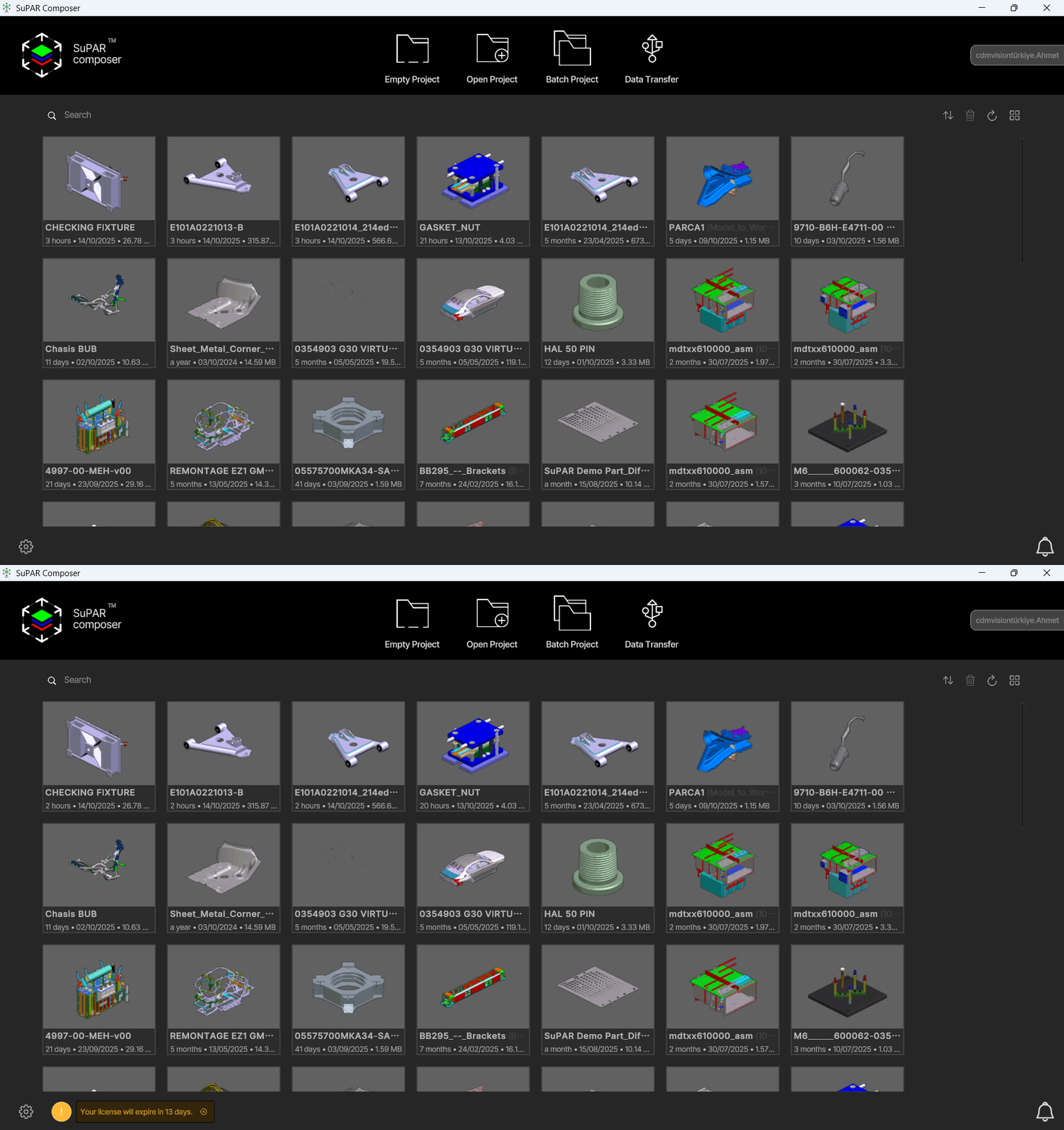
The Settings button (gear icon) is located at the bottom left of the Composer main screen.
General settings
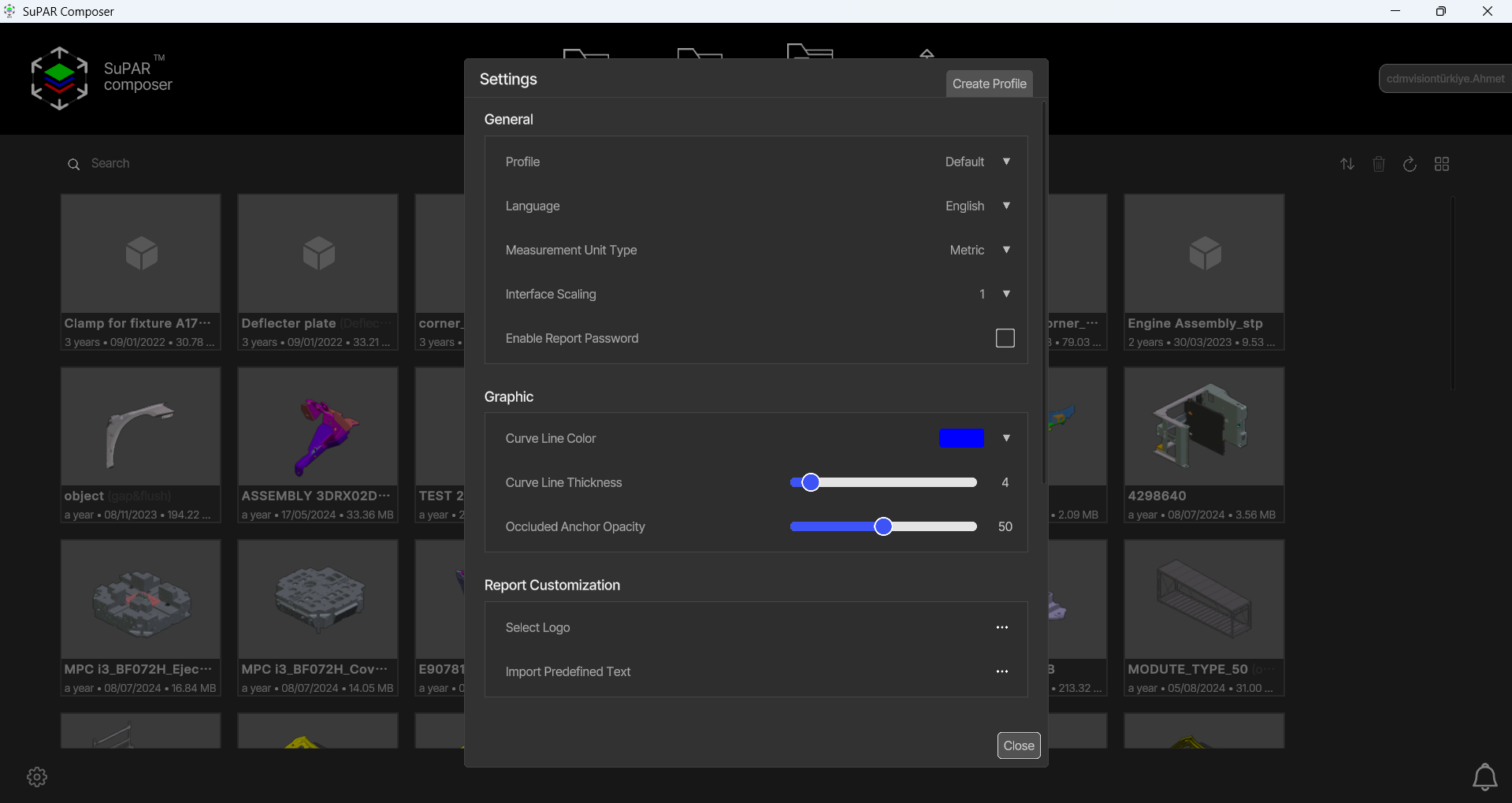
- Profile: Set profiles for different user settings. Click the Create Profile button at the top right to add a new profile.
- Language: Select the interface language.
- Measurement Unit Type: Choose between Metric (mm) and Imperial (inch).
- Interface Scaling: Adjust the size of the interface elements. Increase or decrease the scaling depending on your screen resolution and personal preference.
- Enable Report Password: Protect generated reports with a password. When enabled, users must enter the password before opening the report file. This adds security for sensitive data.
Graphic settings
- Curve Line Color: Change the color of 2D drawings (Curves / PMI).
- Curve Line Thickness: Adjust the line thickness.
- Occluded Anchor Opacity: Adjust the opacity of the control points.
Report customization
- Select Logo: Import a PNG, JPG or JPEG file as your logo. The imported logo appears on the first page of the digital report.
- Import Predefined Text: Add predefined texts for checkpoints of Composer and App. See Predefined Texts.
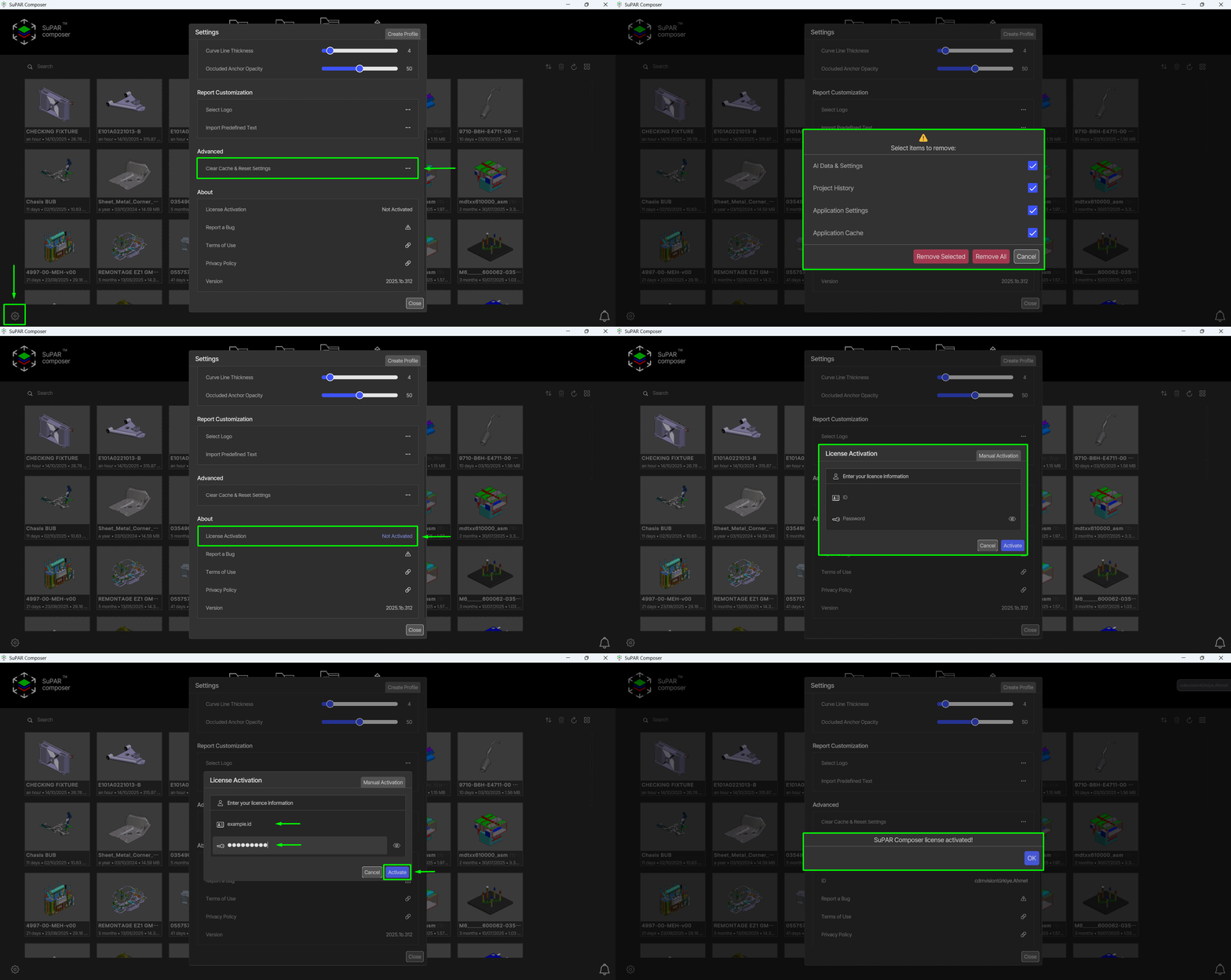
Clear data & reset settings
This menu removes different types of stored data:
- AI Data & Settings – AI preferences and saved options.
- Project History – List of previously created projects.
- Application Settings – Program settings and preferences.
- License Activation – License information.
- Application Cache – Temporary files.
License activation
ℹ️
After license activation SuPAR Composer does not need an internet connection.
Online activation
- Click the gear button to check the license activation status and the Composer version.
- If the license activation shows Not Activated, click the Not Activated text and enter your ID and password.
Manual (offline) activation
Use manual activation if the license server cannot be reached or the PC will always be offline. Manual activation is available in both panels:
- Admin Panel: supar.eu/panel/admin
- Organization Panel: license.supar.eu/license
Steps:
- Go to Settings → License Activation.
- Click Manual Activation.
- Click the button to generate and save the
XXXXX.SPRrequest file. - Go to the user panel, upload the
.SPRfile and download the generatedXXXXX.SPLfile. - Copy the
.SPLfile to the Composer PC. - Select the
.SPLfile in Composer to activate the license.
0:00 / 0:00
License expiration notification
Composer shows how many days are left until the license expires:
- 30 days left: icon only
- 15 days left: icon with a text reminder