Notes & Checkpoints
Notes allow the inspector to document findings on the part. They are automatically saved in the report.
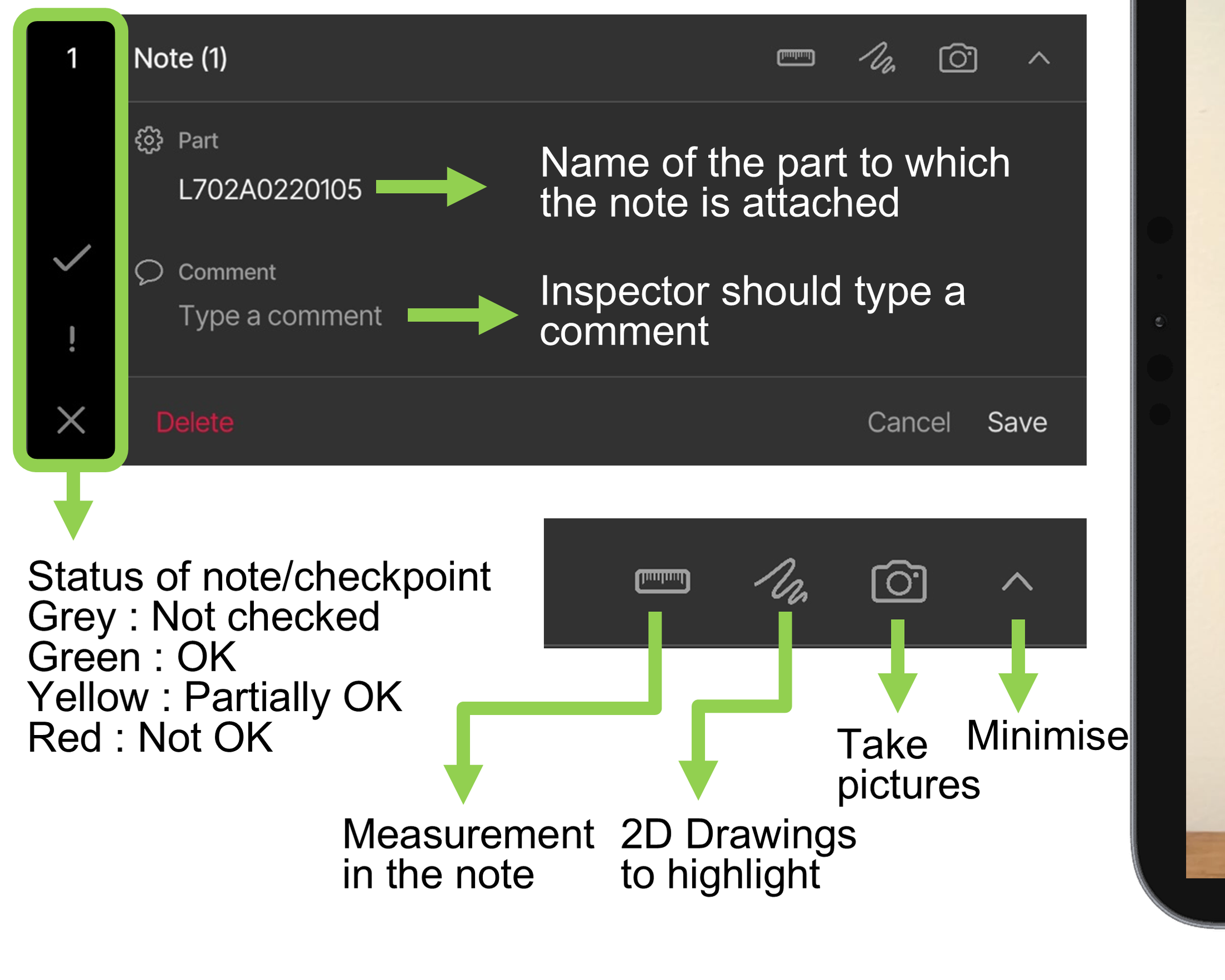
- Status of the note/checkpoint:
- Grey: Not checked
- Green: OK
- Yellow: Partially OK
- Red: Not OK
- Part: Name of the part to which the note is attached.
- Comment: The inspector types a comment here.
- Toolbar: measurement in the note, 2D drawings to highlight, take pictures, minimise.
0:00 / 0:00
Predefined messages
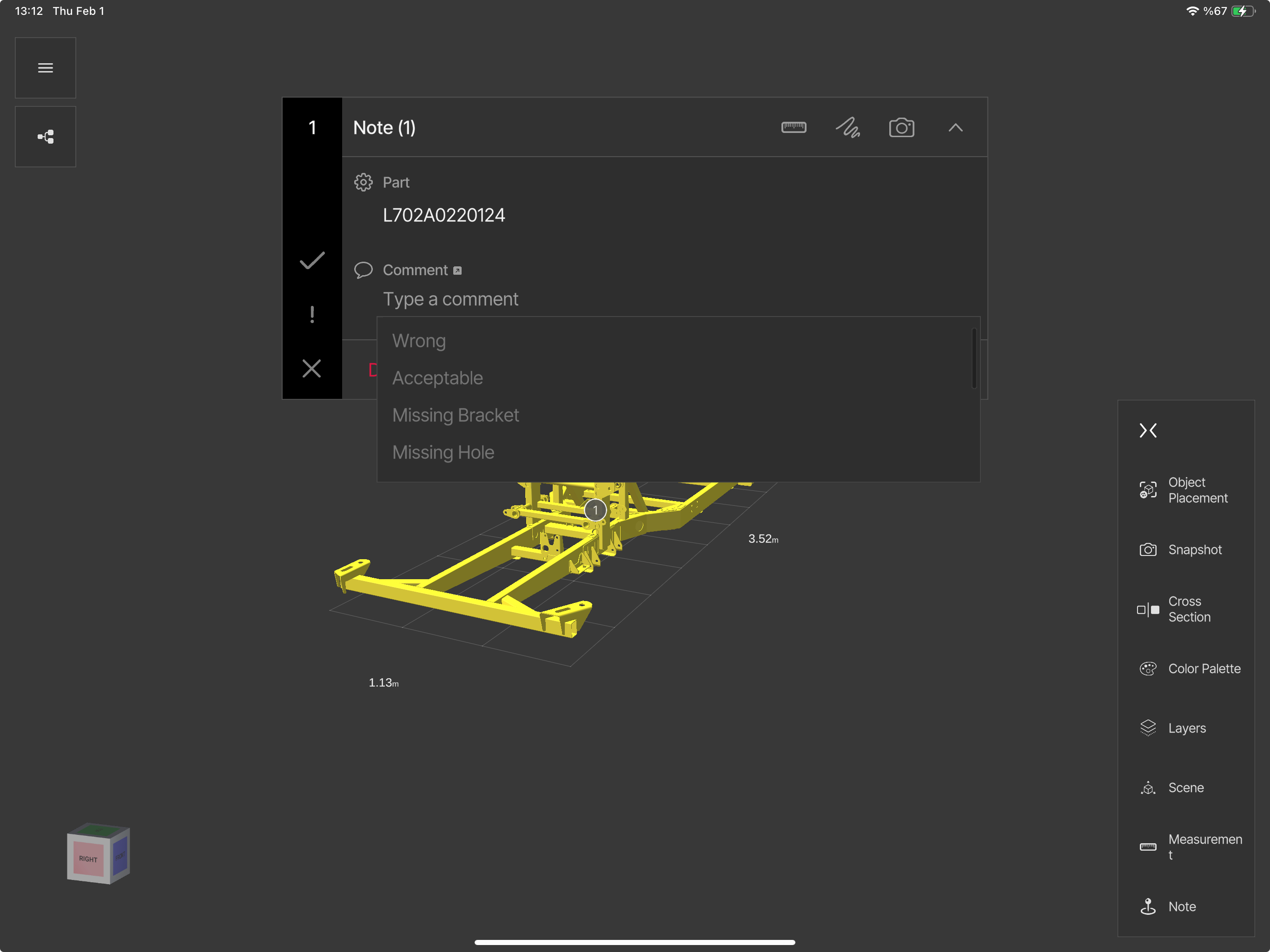
Comments can be managed efficiently by creating an Excel file and importing it into Composer (see Predefined Texts). While writing a comment in the app, the predefined messages are available from a list, which streamlines commenting and keeps it consistent.
Type the first two letters of a comment, or tap the small arrow symbol, to see the list.
How to take a note
- Investigate the object.
- Detect the problem.
- Tap Note.
- Attach the note close to the defect.
- Change the status (OK / Partially OK / Not OK).
- Type a comment.
- Tap the drawing menu.
- Draw a circle, arrow or rectangle to highlight the defect.
- Tap Done.
- Tap the camera button (not Snapshot).
- Zoom in and take pictures.
- Save the note.
0:00 / 0:00
Quick POI decision
Select the POI decision without opening the checklist window — a quick way to record decisions during the inspection.
0:00 / 0:00