Open & Save Inspection
Open inspection
Inspection templates prepared in Composer and unfinished/completed inspections are listed here.
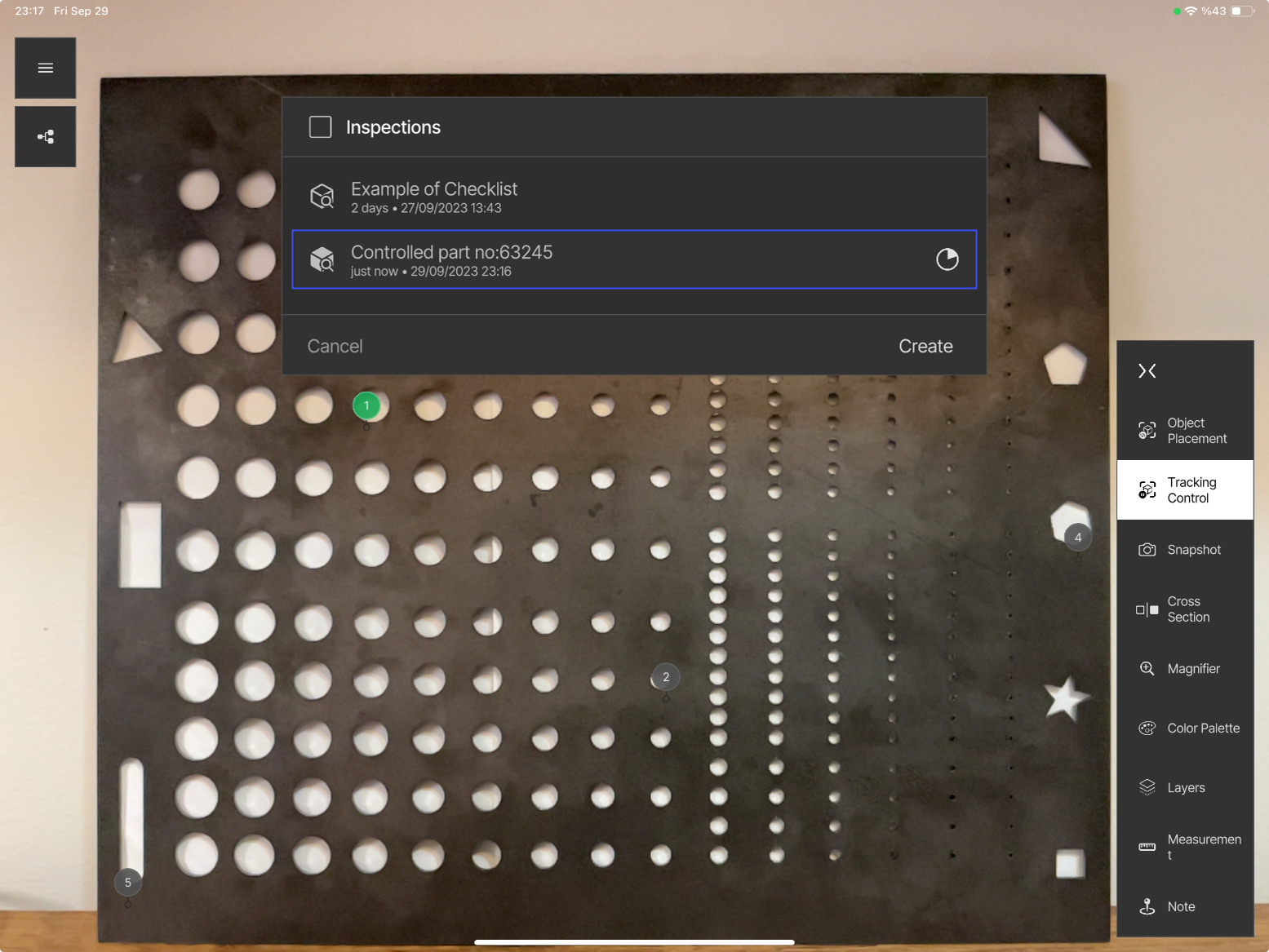
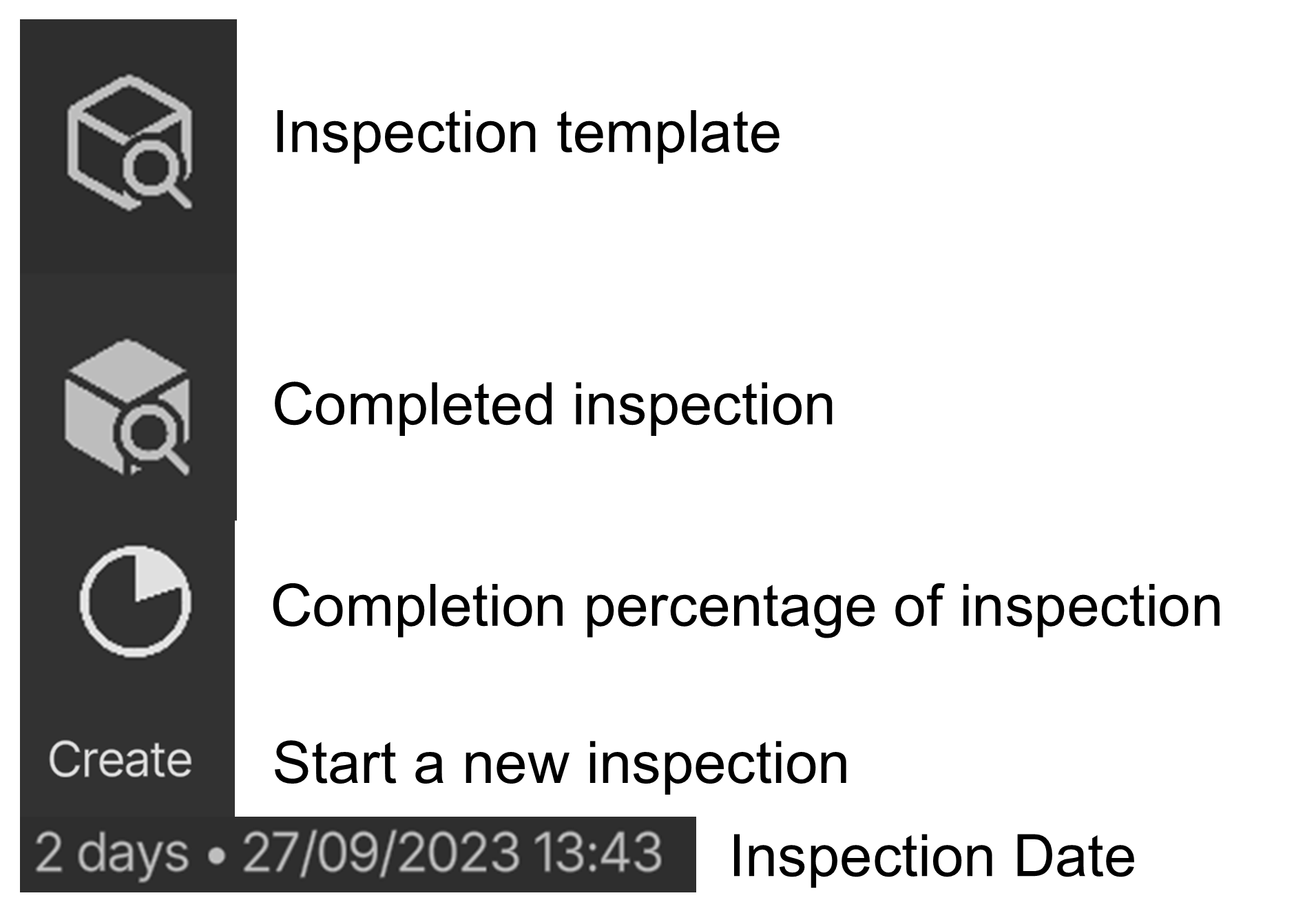
- Inspection template — a checklist prepared in Composer.
- Completed inspection — a saved inspection.
- Completion percentage of the inspection.
- Create — start a new inspection from the template.
- Inspection date — date and time of the saved inspection.
Save inspection
After completing all checkpoints of the visual inspection, tap Save Inspection to generate a digital report. The following options personalise the report:
- Inspection Name: Name of the inspection — helps to identify and organise the report.
- Comment: A general evaluation of the part.
- Start New Inspection: After saving, automatically start a new inspection from the same template.
- Report Export Options: Include or exclude specific types (Comment, Checkpoint, Smartpoint) and statuses (Not Checked, OK, Partly OK, Not OK) in the report.
0:00 / 0:00
Metadata
Below the divider, the metadata section contains:
- Inspector Name: Name of the inspector.
- Inspector ID: Unique ID of the inspector.
- Part No: Enter the part number manually or scan it with a QR code.
- Inspection Location: Select the inspection location while saving (e.g. Incoming Quality, Final Inspection, Welding Shop).
- Pass/Fail: Tick the box if the part passes the inspection.
- Score: Assign a score to the part based on the inspection.
These details appear on the second page of the digital report.
0:00 / 0:00
Editing checkpoint photos
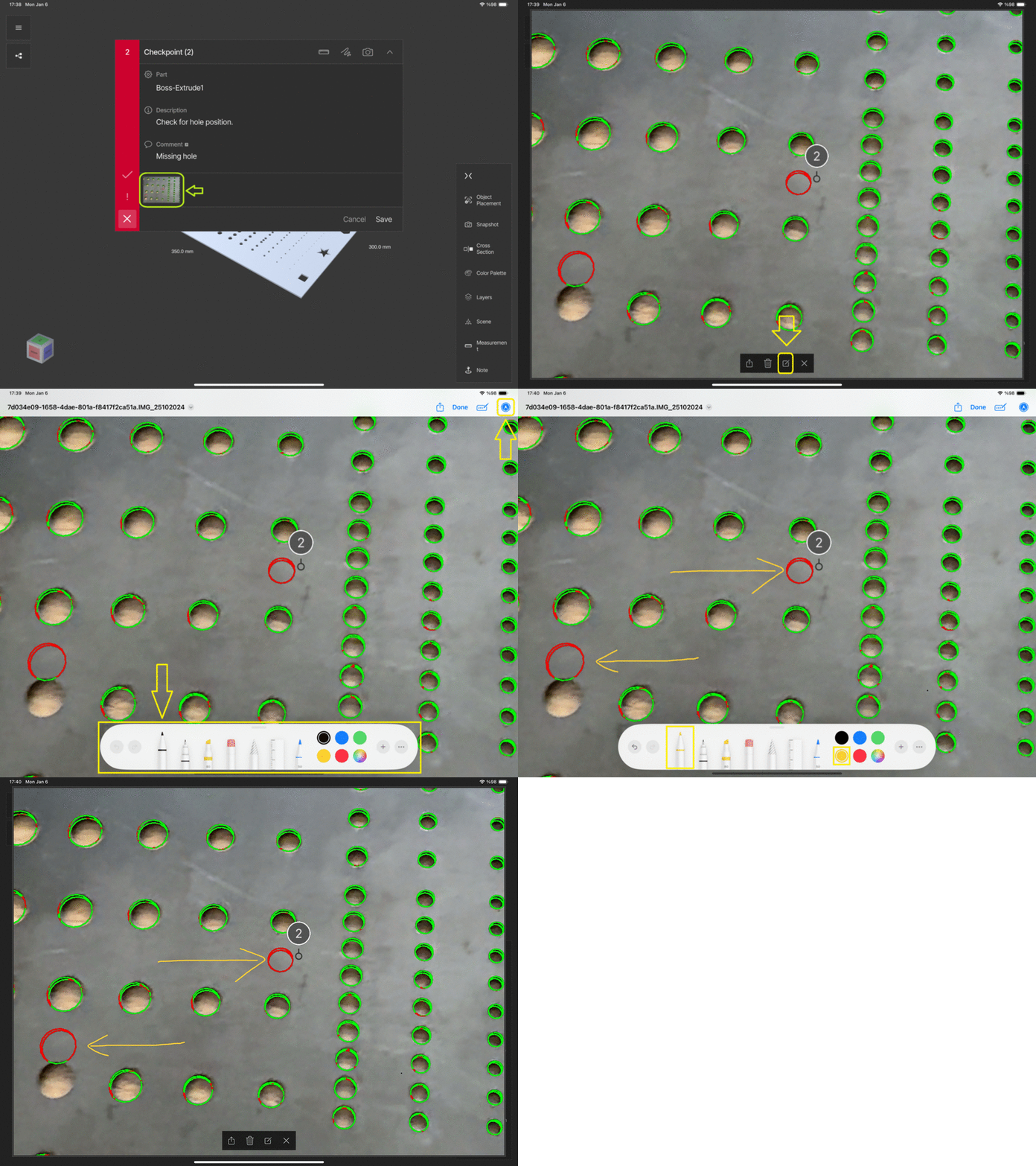
2D drawings can be added to photos taken at checkpoints:
- Open the relevant checkpoint.
- Select the image you want to edit.
- In the image window, tap Edit.
- Highlight or mark the areas you want, or add notes, then tap Done to save the image.