Settings
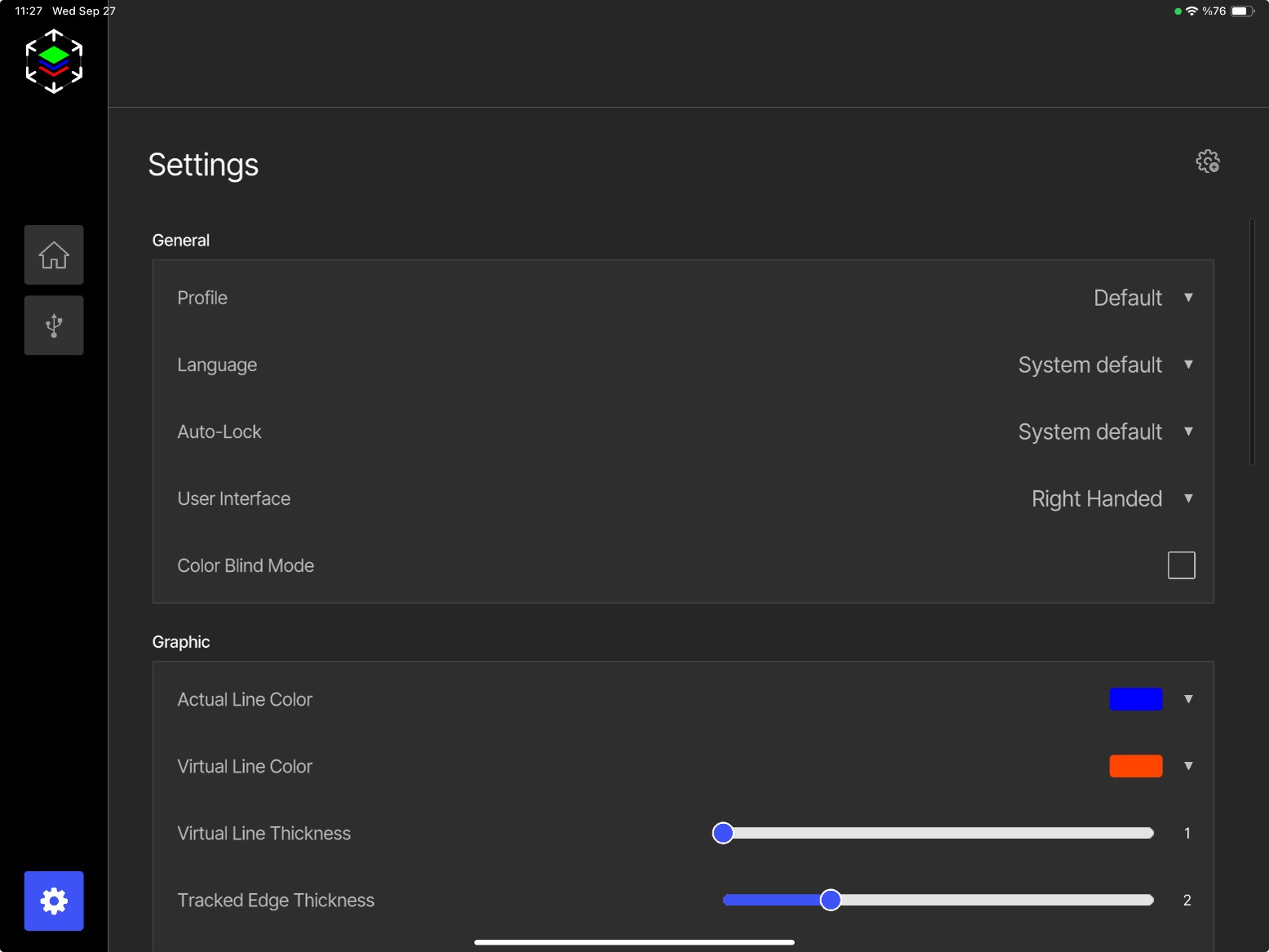
General settings
- Profile: Set profiles for different user settings.
- Language: Select the language.
- Auto Lock: Automatic screen lock setting.
- User Interface: Switch the interface to right- or left-handed.
- Color Blind Mode: Activate for color-blind users.
Graphic settings
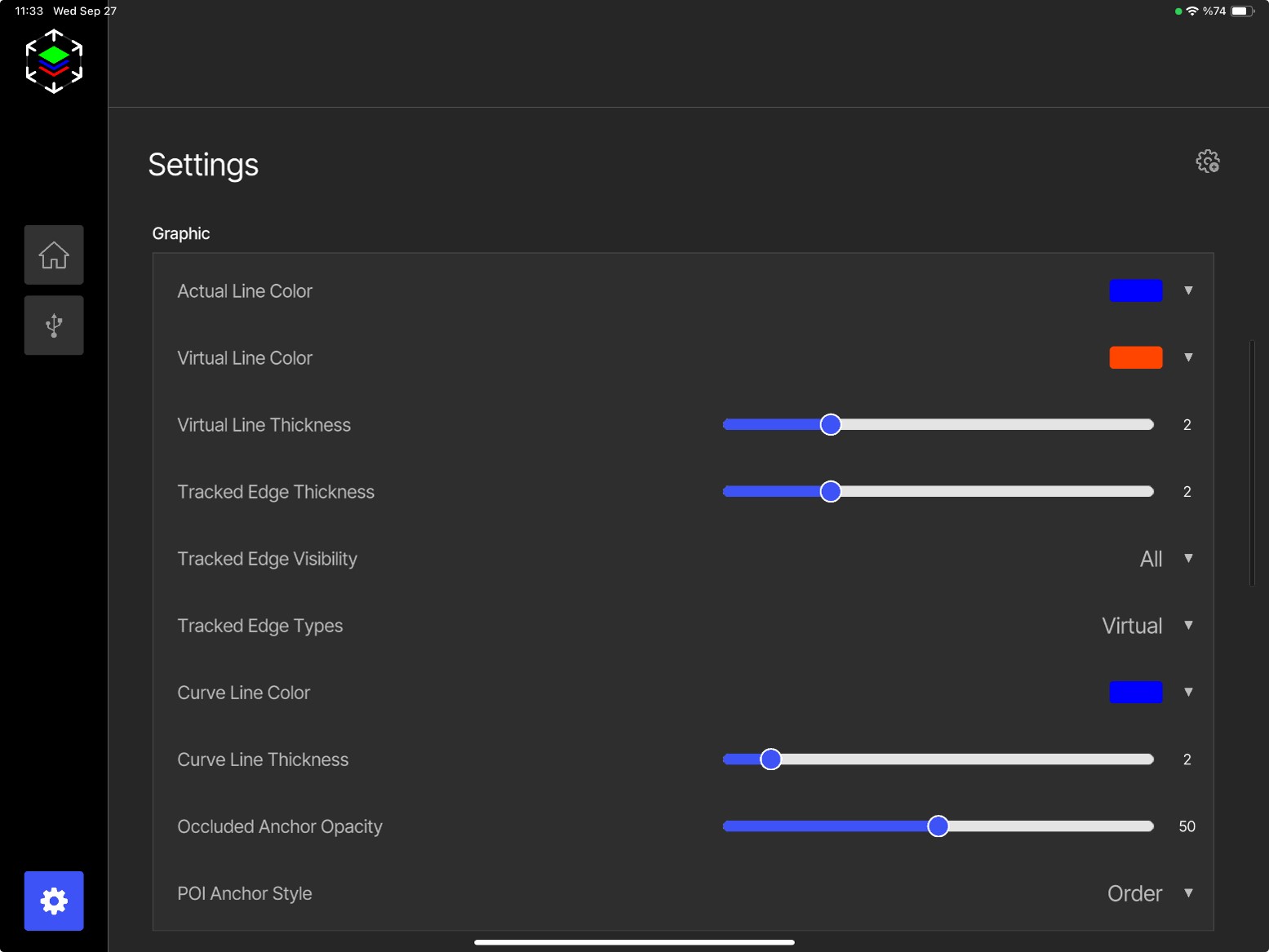
- Actual Line Color: Change the color of the actual edges of the object.
- Virtual Line Color: Change the color of the virtual (CAD) edges.
- Virtual Line Thickness: Adjust the line thickness.
- Tracked Edge Thickness: Adjust the line thickness.
- Tracked Edge Visibility: Choose which tracked edges are shown:
- All — all matching and non-matching edges (red – yellow – green)
- Tracked — only matching edges (green)
- Not Tracked — only non-matching edges (red)
- Tracked Edge Type: Keep it as Virtual.
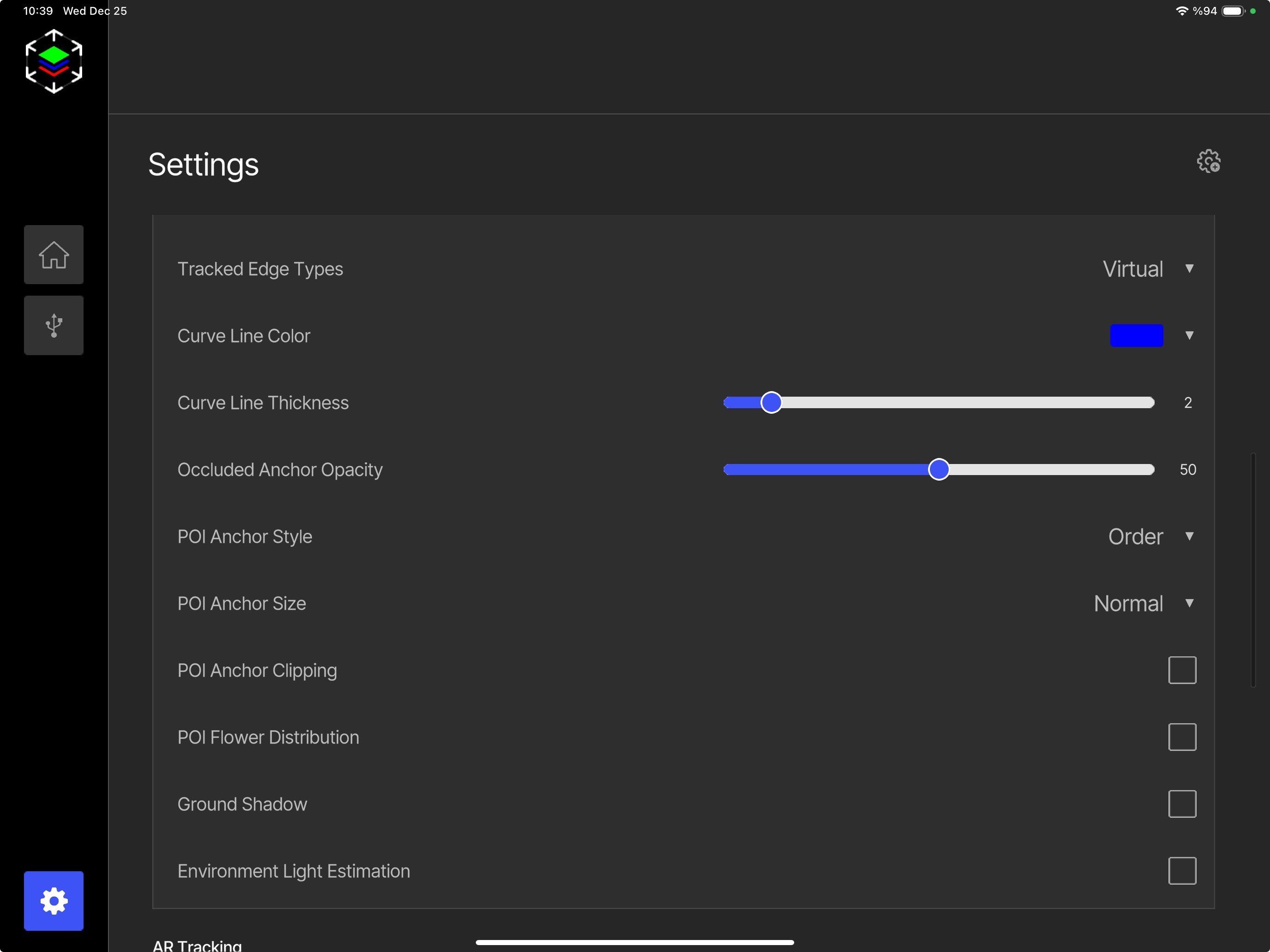
- Curve Line Color: Change the color of 2D drawings (curves).
- Curve Line Thickness: Adjust the line thickness.
- Occluded Anchor Opacity: Adjust the opacity of the control points.
- POI Anchor Style: Display the control points as order or title.
- POI Anchor Size: Change the display size of the control points.
- POI Anchor Clipping: Adjust the visibility of control points based on distance (see POI Anchor Clipping).
- POI Flower Distribution: Improves the visibility of clustered POIs by adjusting their distribution.
- Ground Shadow: Enable or disable the ground shadow. Applicable in Free Placement and Scene mode.
- Environment Light Estimation: Uses the environmental lighting to simulate the same light on virtual objects in AR. Useful for designers inspecting with the solid model; it affects neither tracking nor inspection.
AR Tracking
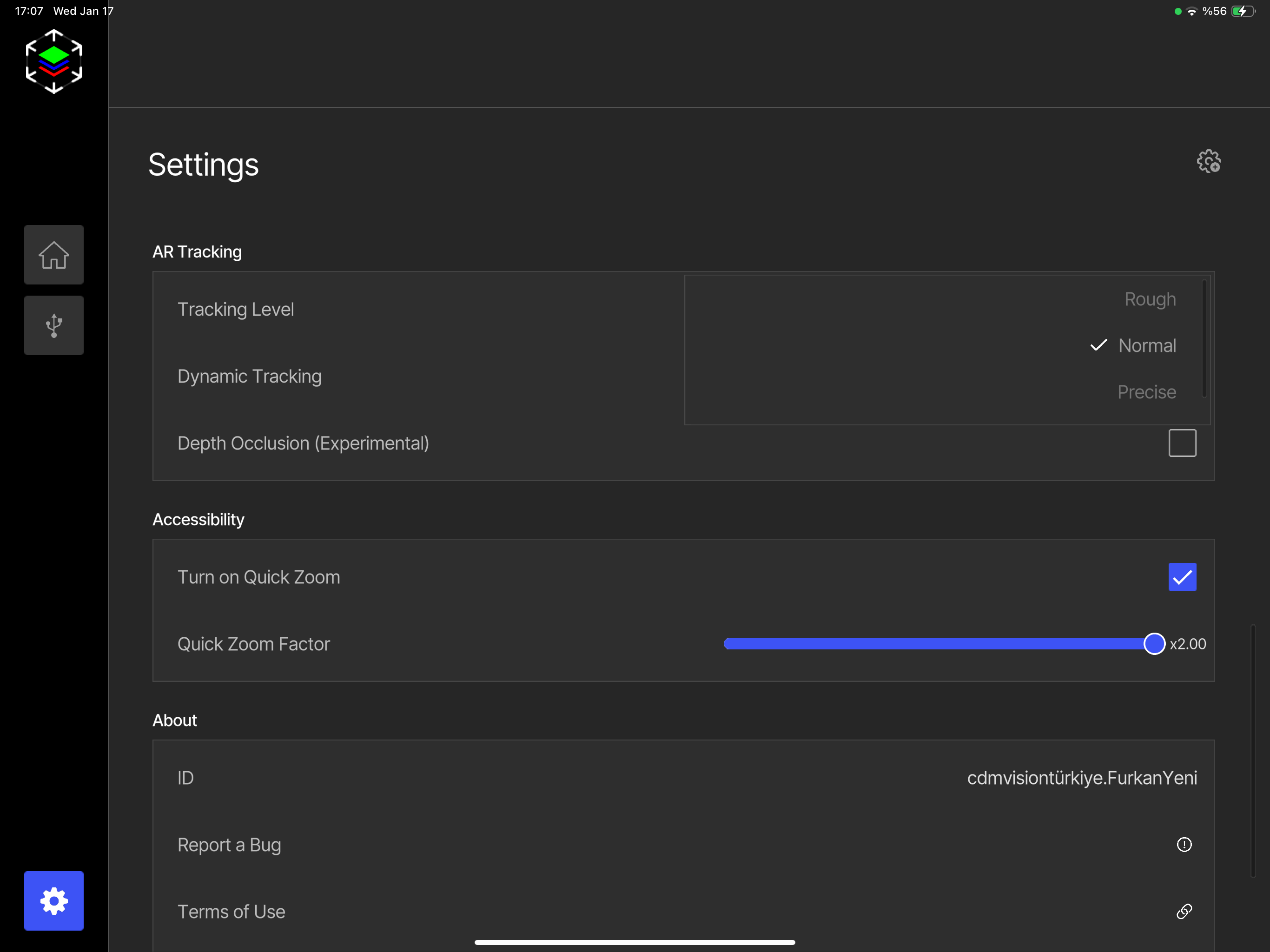
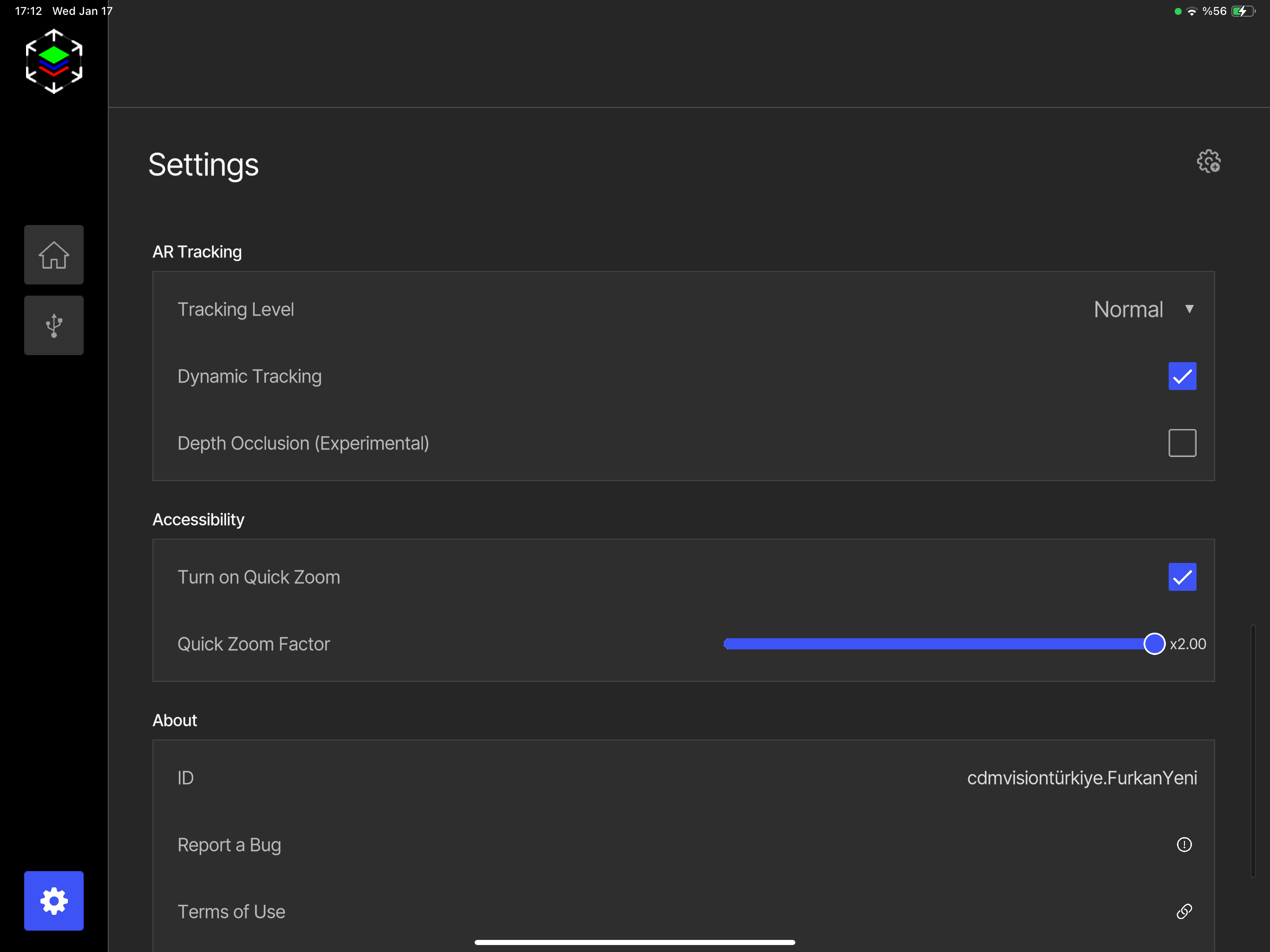
- Tracking Level: Threshold for the differences between the CAD model and the real object, used for the start and continuity of tracking.
- Rough: For major differences between the object and the CAD model. Suitable for large/wide parts.
- Normal: Suitable for general use. If there is an initial mismatch, change from Rough to Normal.
- Precise: Use if the part has very few edges or is not complex.
- Dynamic Tracking: Performs real-time edge extraction during tracking, giving more stable tracking and the ability to get physically close to the part. Recommended: keep it enabled.
- Depth Occlusion: If there are objects between the part and the iPad (for example people walking by), it provides more stable tracking by muting the edges behind them. Otherwise it is recommended to keep it off.
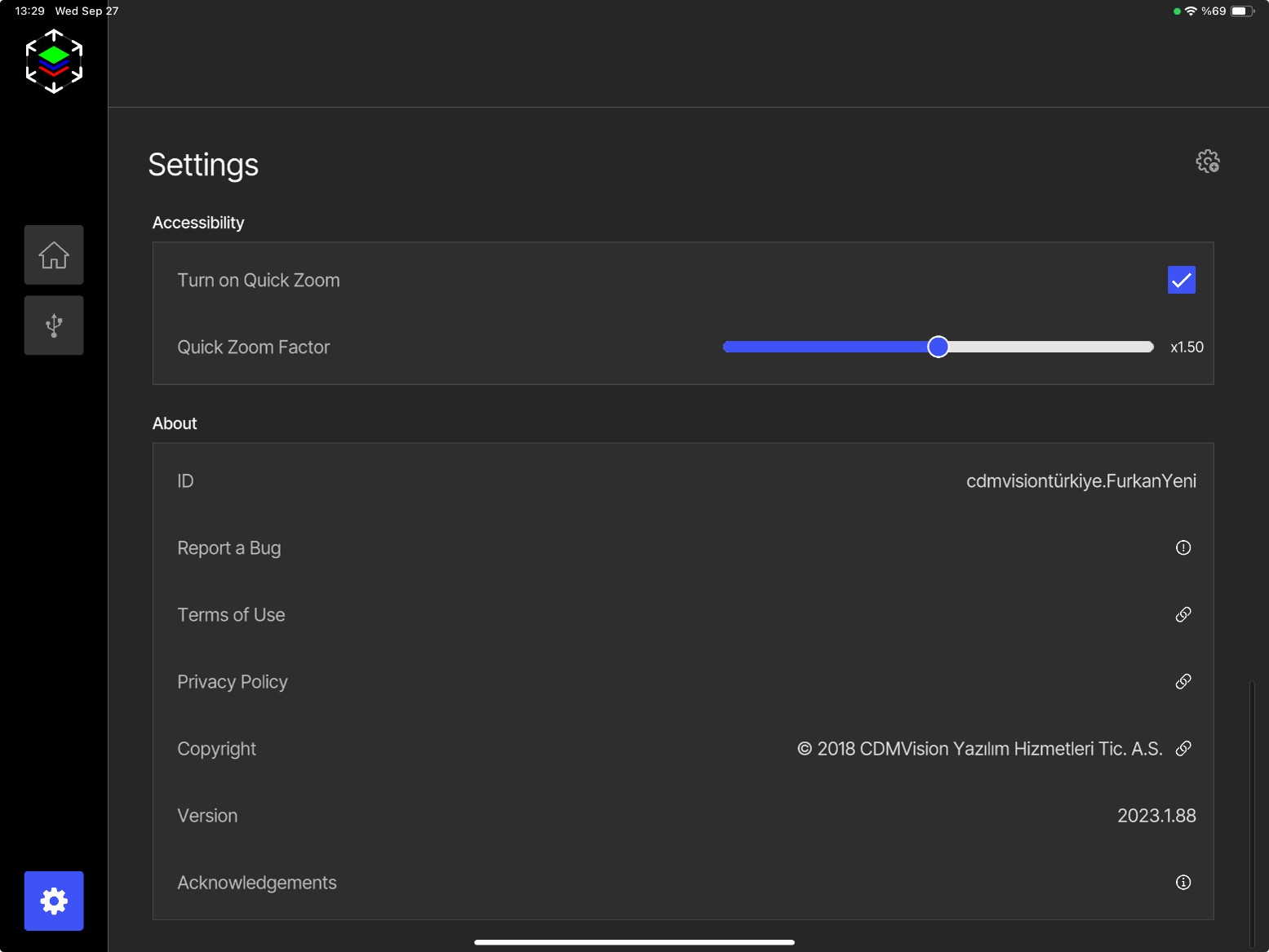
Accessibility
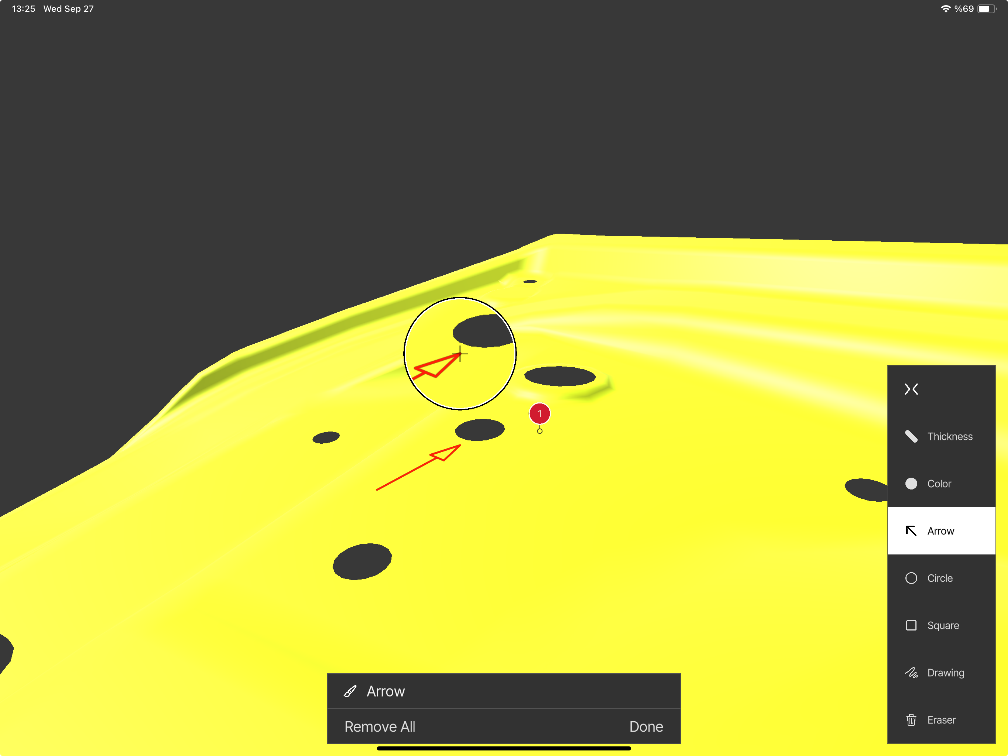
- Turn on Quick Zoom: When making 2D drawings (arrow, circle, etc.) a small zoom window opens automatically. Recommended: keep it enabled.
- Quick Zoom Factor: Set the zoom factor.
About
- ID: Software license ID.
- Report a Bug: In case of a crash or bug, create a bug report from this button and send it together with the
.spprojectfile (see Bug Report). - Terms of Use, Privacy Policy, Copyright, Acknowledgements
- Version: Release number — update regularly through the App Store.